GLB Preview
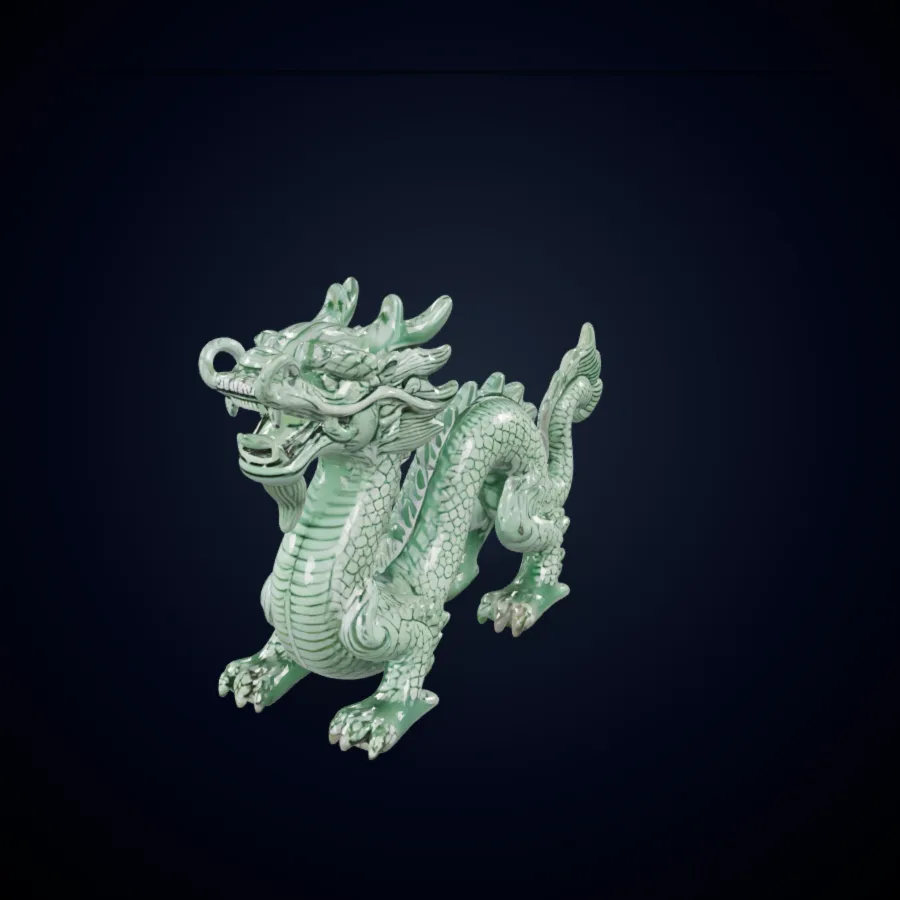
Dragon
Detailed fantasy creature preview with PBR material styling.
Turn a product photo, character sketch, or object reference into a 3D draft with Tripo3D H3.1. This Tripo workflow starts in Image to 3D and keeps texture, geometry, and export controls close at hand.
Tripo searches often begin with a simple goal: move from a flat reference to a model that can be inspected from every side. The generator opens with Tripo3D H3.1 selected, so you can upload one image, generate a draft, and assess the geometry without first changing model families. A useful Tripo AI workflow continues beyond the first preview. Rotate the object, compare proportions, inspect surfaces, choose texture and geometry settings, then export the strongest direction for further work.

A focused image gives Tripo a readable silhouette and fewer conflicting cues. Center one object, leave space around its outline, and avoid heavy occlusion when possible. Product photos, toy concepts, character sketches, props, furniture studies, and decorative objects are practical inputs. The Tripo 3D result should be treated as a reviewable draft: compare the front, sides, and back instead of judging only the first camera angle.
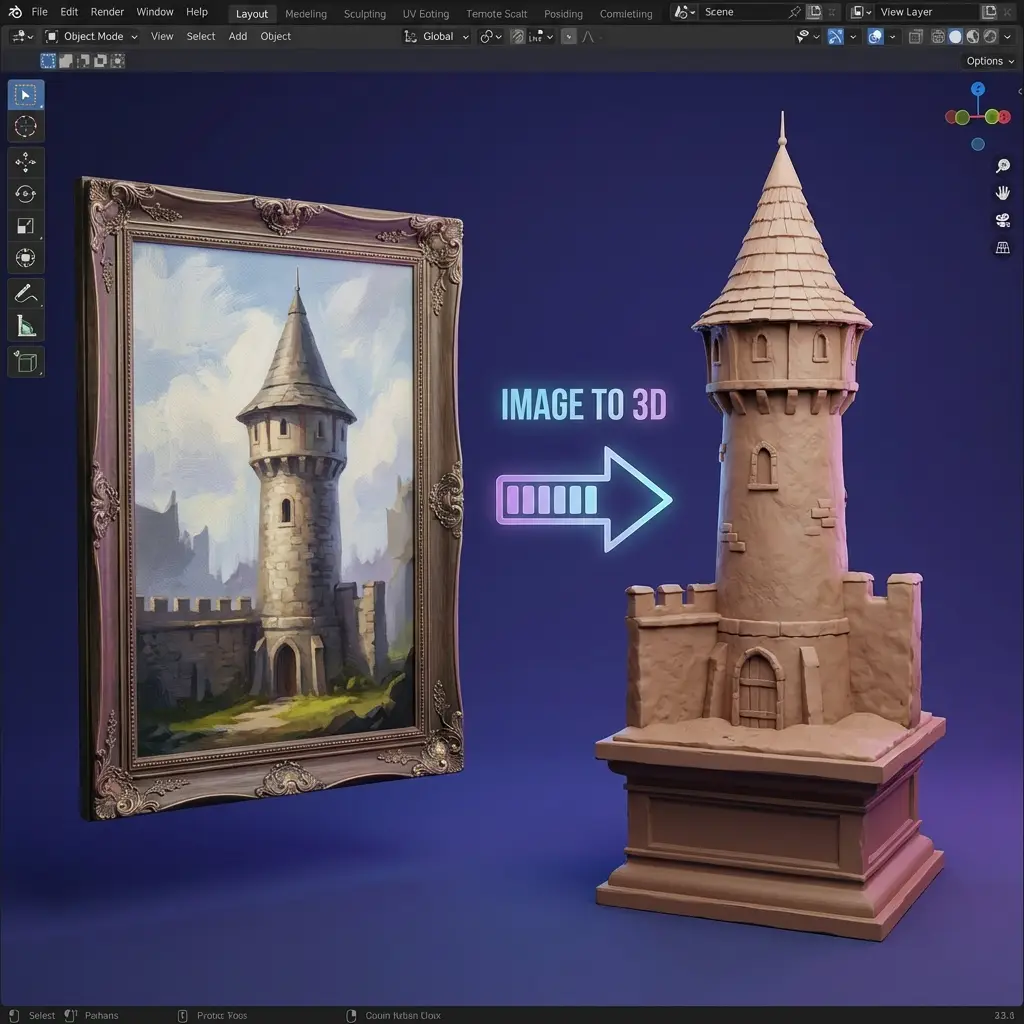
Tripo3D H3.1 also supports the existing multi-view path in this generator. Add coordinated views when the hidden side, depth, or asymmetrical detail matters. Keep lighting, scale, and object identity consistent across inputs. Tripo AI can use the extra visual evidence to establish a clearer direction, but mismatched references can still create uncertain geometry. Review every supplied angle before generating.
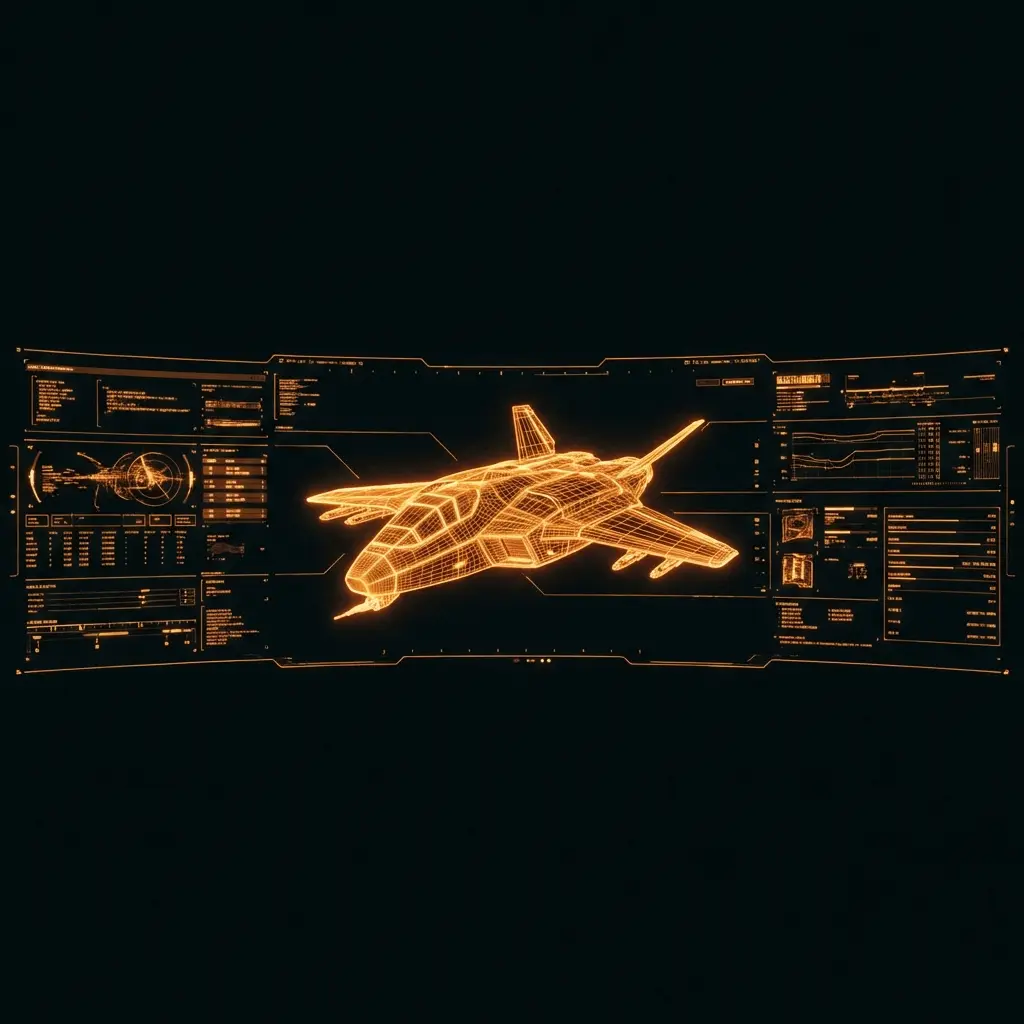
The Tripo controls expose standard or HD texture quality, standard or detailed geometry, PBR output, and quad mesh options. Higher settings are not automatically the right choice for every project. A blocking asset may need a simple Tripo draft, while a close product concept may benefit from more surface information. Match the settings to the next editing step, then compare the mesh rather than relying on labels alone.

A Tripo preview becomes useful when it survives rotation. Look for a stable silhouette, coherent volume, closed or intentional surfaces, sensible scale, and texture placement that supports the source. Check thin parts, repeated elements, handles, feet, and hidden faces. If the Tripo 3D model misses an important form, simplify the input, add another view, or generate a new variation before investing in manual cleanup.

After review, export the selected asset and continue in Blender, Unity, Unreal, or another 3D application. Typical follow-up work includes topology cleanup, scale correction, UV review, material adjustment, rigging, collision setup, and optimization. Tripo shortens the distance to a tangible starting point, while the final production standard still depends on the project, platform, and artist decisions.
Preview high-quality 3D model examples instantly, then load the interactive viewer on demand.
Detailed fantasy creature preview with PBR material styling.
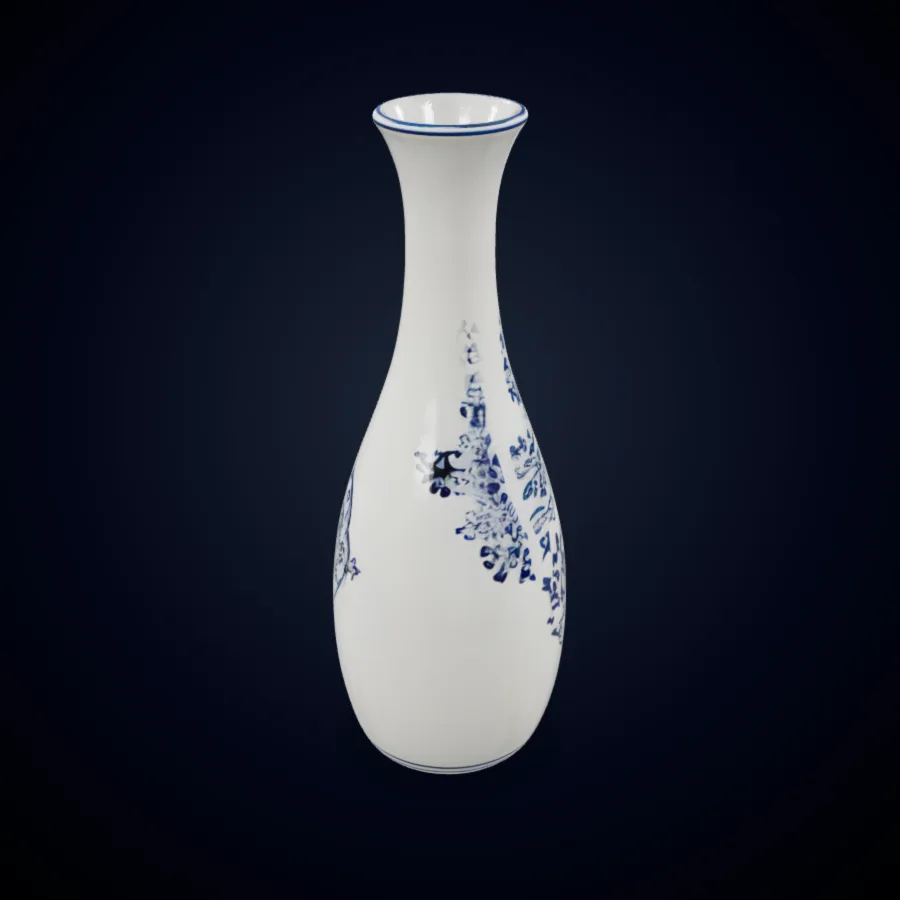
Product-ready hard-surface asset for design review workflows.
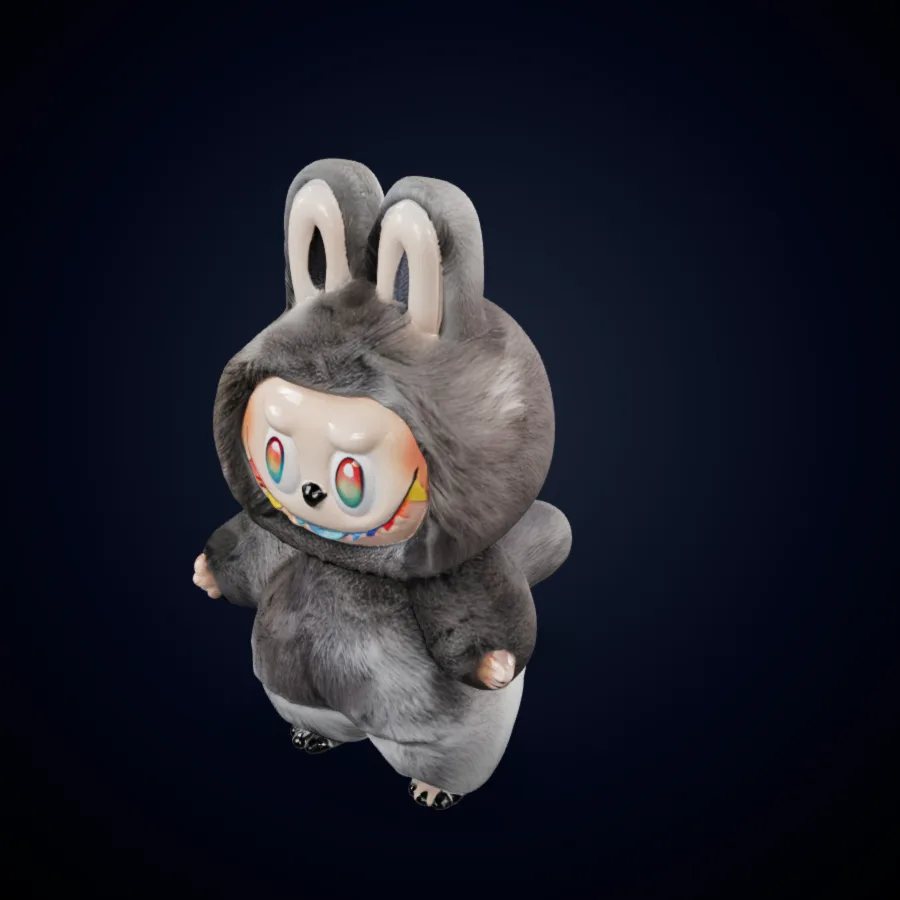
Clean character-style mesh preview for quick creative validation.
Prepare a strong reference, generate with the selected Tripo3D H3.1 model, and review the asset before export.
For a single-view Tripo workflow, crop one object clearly and remove distracting surroundings. For multi-view, prepare consistent front, back, side, or angled images of the same subject. Keep proportions and lighting aligned. The Tripo AI input does not need to be elaborate, but it should communicate the object more clearly than a crowded scene or partially hidden reference.
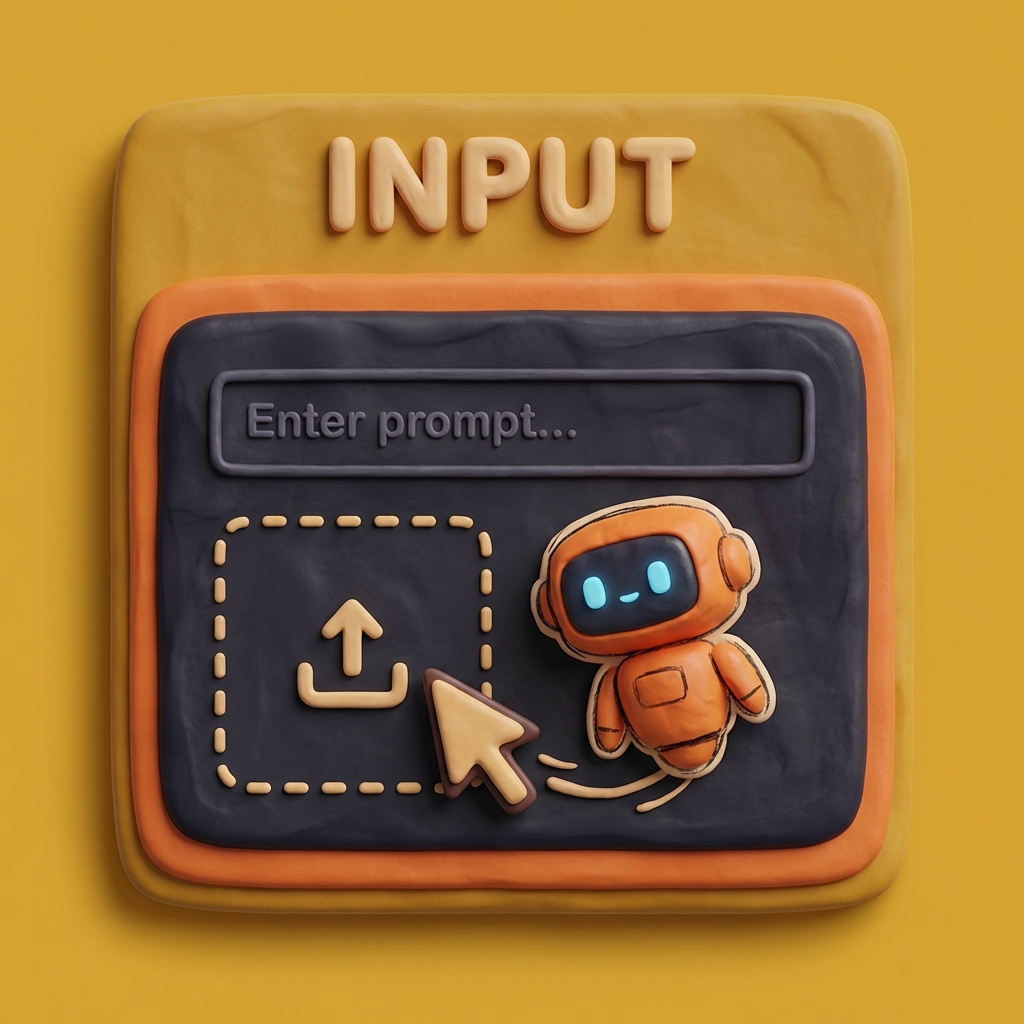
The page opens with Tripo3D H3.1 Single View selected. Choose standard or HD texture quality, standard or detailed geometry, PBR, quad mesh, and seed controls according to the intended use. Switch to Multi-View when coordinated references are available. Change one setting per comparison so the Tripo result remains easy to evaluate.

Activate the generator, upload the reference, and create the draft. Rotate the Tripo 3D result through front, side, rear, top, and low angles. Compare silhouette, thickness, surface continuity, texture placement, and scale. Generate another variation if needed. Export only the version that provides a useful foundation for the next tool and document any cleanup still required.

Tripo can give teams an inspectable 3D starting point for planning, iteration, communication, and downstream editing.

Game teams can turn a prop sketch or reference into a rough asset for scale tests, scene blocking, or art-direction review. Use Tripo 3D to make the object tangible early, then assess polygon flow, silhouette, materials, collision needs, and platform budgets. The draft may still require retopology, UV work, baking, and engine-specific optimization before gameplay use.

Product and ecommerce teams can use Tripo AI to explore packaging, tabletop objects, accessories, and decorative items as dimensional drafts. Check the model against reference proportions and intended camera angles. The result can support layout experiments, early AR tests, merchandising discussion, or a clearer brief for a 3D artist before final materials and measurements are prepared.

Industrial designers, educators, and prototype teams can use Tripo to compare form directions without beginning from an empty scene. A single view establishes the primary idea; coordinated views help communicate hidden structure. Review the generated volume in a meeting, annotate weak areas, and carry the most promising version into manual modeling or visualization.

Film and VFX teams can test props, creature details, set objects, and background assets before detailed modeling. A Tripo draft helps answer whether the silhouette and scale deserve deeper work. Artists can then plan topology, UVs, materials, rigging, animation, and shot-specific requirements with a visible starting point rather than a purely verbal brief.
Judge each Tripo draft by the input, the visible geometry, and the needs of the next production stage.
The first view can hide major errors. Rotate the Tripo model and compare front, side, rear, top, and underside shapes with the reference. Prioritize the large form before small surface detail.
Measure the relationships that define the object: height to width, body to handle, head to torso, or seat to legs. A useful Tripo 3D draft should maintain believable thickness and stable proportions.
Look for holes, floating pieces, fused gaps, stretched faces, and unstable thin elements. Detailed geometry can reveal more form, but the Tripo result still needs inspection before editing or rigging.
Review standard and HD texture output at the viewing distance your project needs. Check seams, repeated patterns, color placement, and material response. Use PBR only when it supports the downstream workflow.
Quad output may help some editing workflows, but topology requirements vary. Inspect loops, poles, density, and deformation areas rather than assuming the setting makes a Tripo AI asset production-ready.
List the remaining topology, UV, material, scale, rigging, or optimization tasks next to the chosen Tripo version. A clear handoff turns the generated draft into an actionable production starting point.
Answers about Tripo3D H3.1 inputs, settings, review, multi-view generation, and export in this workflow.
The interactive generator starts in Image to 3D with Tripo3D H3.1 Single View selected. If you switch to Multi-View, the existing H3.1 Multi-View model is used. You can still choose another available model manually, but the initial Tripo workflow is ready without an extra model-family switch.
Use a clear image with one visible subject, a readable outline, limited occlusion, and enough resolution to communicate the main form. Tripo AI can work with product photos, sketches, props, characters, and concept references. Avoid crowded scenes, cropped limbs, extreme blur, and backgrounds that merge with the object.
Use Tripo 3D Multi-View when the hidden side, depth, or asymmetrical structure cannot be inferred reliably from one image. Supply consistent views of the same object with similar scale and lighting. Conflicting designs across views can reduce coherence, so verify every input before generation.
Texture quality controls whether the Tripo draft uses no texture, standard texture, or HD texture. Geometry quality offers standard or detailed output for H3.1. Select settings according to the next task and compare the actual model, because higher settings are not necessary for every blockout or prototype.
Enable PBR when the downstream workflow benefits from physically based material data. Enable Quad when a quad-oriented mesh is useful for planned editing. Both options still require inspection. Check materials, topology, edge flow, and deformation needs before treating the asset as finished.
Yes. Switch the Image to 3D input from Single to Multi and add coordinated views. The generator keeps the Tripo3D family and selects the H3.1 Multi-View model. Use only images that describe the same object consistently.
Open the asset in Blender, Unity, Unreal, or another suitable 3D tool. Confirm scale and orientation, inspect topology and UVs, adjust materials, and complete any rigging or optimization required by the target platform. Keep the original reference and generation settings with the handoff.
Upload a clear reference, generate with Tripo3D H3.1, inspect the model from every side, and export the strongest draft for further editing.