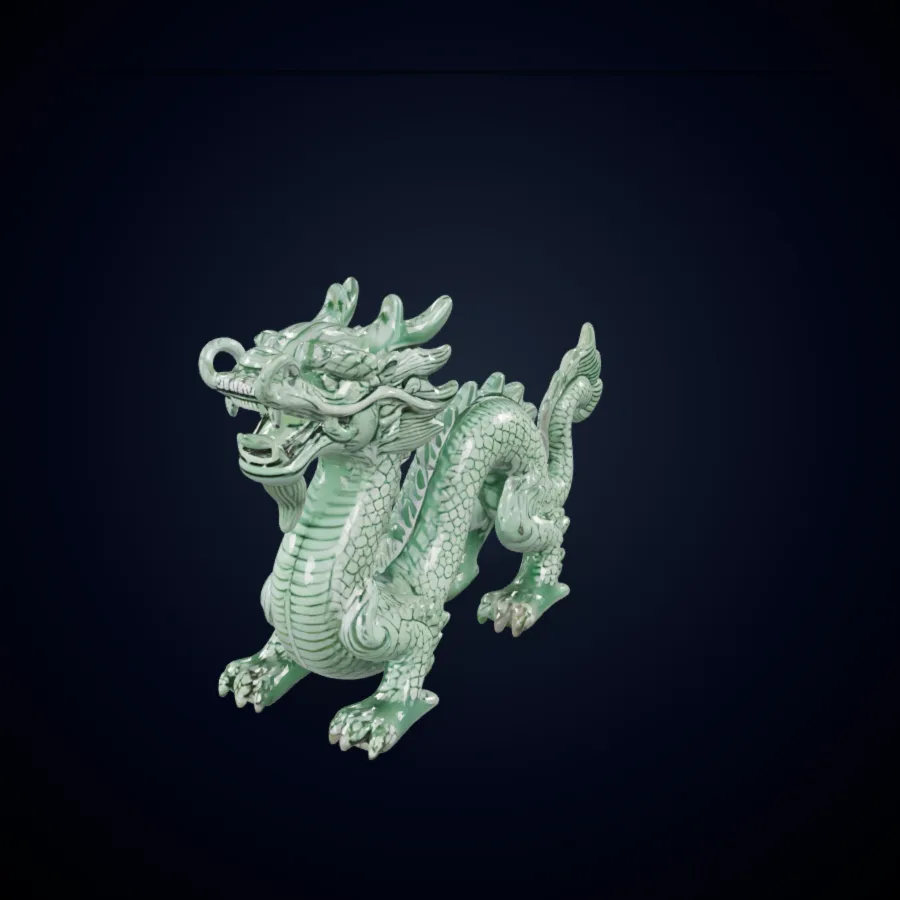
GLB Preview
Dragon
Detailed fantasy creature preview with PBR material styling.
Turn one product photo, object reference, or concept image into a Seed3D draft. This Seed 3D workflow opens in Image to 3D, keeps the input focused, and prepares a ZIP package for inspection and downstream work. Seed3D AI is useful when a single reference gives the team a concrete form to review.
Seed3D work begins with one readable image and a clear review goal. The generator opens with Seed3D selected, so you can upload a reference, create a draft, inspect the result, and download the returned ZIP package without first changing model families. A useful Seed 3D workflow does not end at the first preview: check the silhouette, scale, surfaces, and files before taking the asset into the next tool. Seed3D AI keeps the first pass centered on the visible evidence in that one reference.

A focused image gives Seed3D a readable silhouette and fewer conflicting cues. Center one object, leave space around its outline, and avoid heavy occlusion when possible. Product photos, toy concepts, character sketches, props, furniture studies, and decorative objects are practical inputs. Treat the Seed 3D result as a reviewable draft rather than judging it from one camera angle only. Seed3D AI benefits from an image that makes the main object unmistakable.
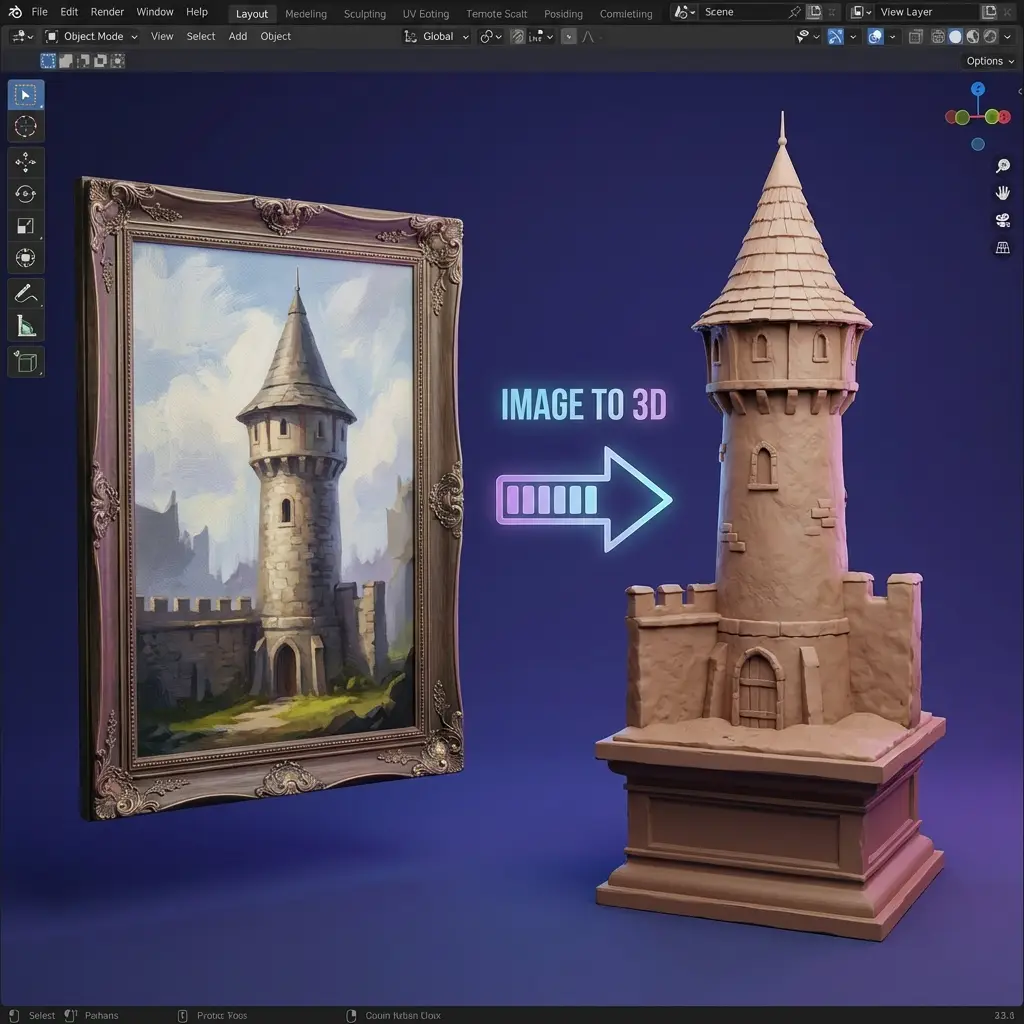
Seed3D uses the current single-image path in this generator. Choose a reference with a distinct subject, visible boundaries, and enough contrast to separate the object from its background. Crop away unrelated objects and preserve important handles, legs, openings, or accessories. A simple Seed3D input makes it easier to compare the generated volume with the source. This gives Seed3D AI a clearer starting point for the draft.
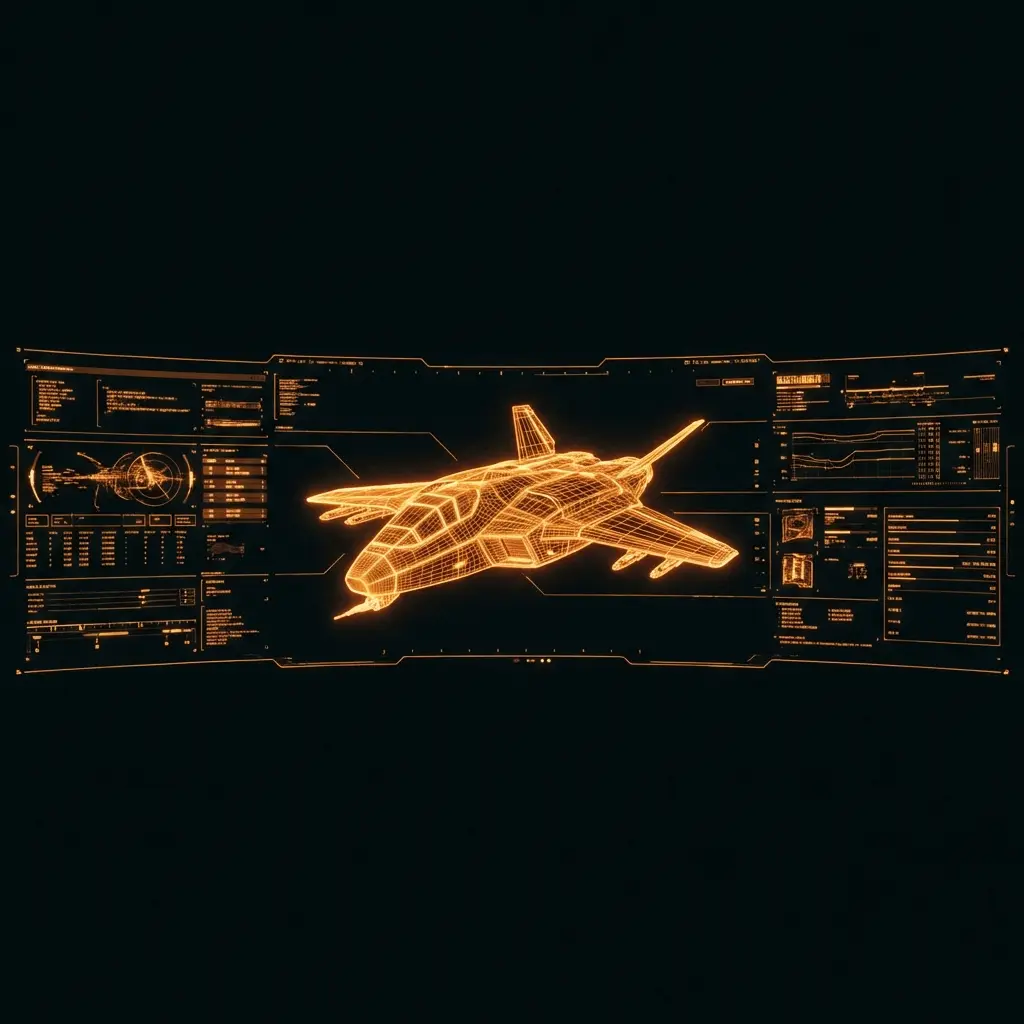
After Seed3D finishes, rotate and inspect the result before deciding it is ready. Look for a stable silhouette, coherent volume, plausible depth, and surfaces that support the source image. Check thin parts, repeated elements, undersides, and hidden areas. If an important form is missing, simplify the reference or prepare a clearer image for another Seed 3D pass. Use Seed3D AI review notes to decide whether a revised image is needed.

The current Seed3D workflow returns a ZIP package. Download it, inspect its included assets, and confirm that the files fit the next application before beginning cleanup. Keep the selected source image with the package so a teammate can understand the intended form, material direction, and review notes.

After review, continue in Blender, Unity, Unreal, or another 3D application. Typical follow-up work includes topology cleanup, scale correction, UV and material review, rigging, collision setup, and optimization. Seed3D shortens the distance to a tangible starting point, while the final production standard still depends on the project, platform, and artist decisions.
Preview high-quality 3D model examples instantly, then load the interactive viewer on demand.
Detailed fantasy creature preview with PBR material styling.
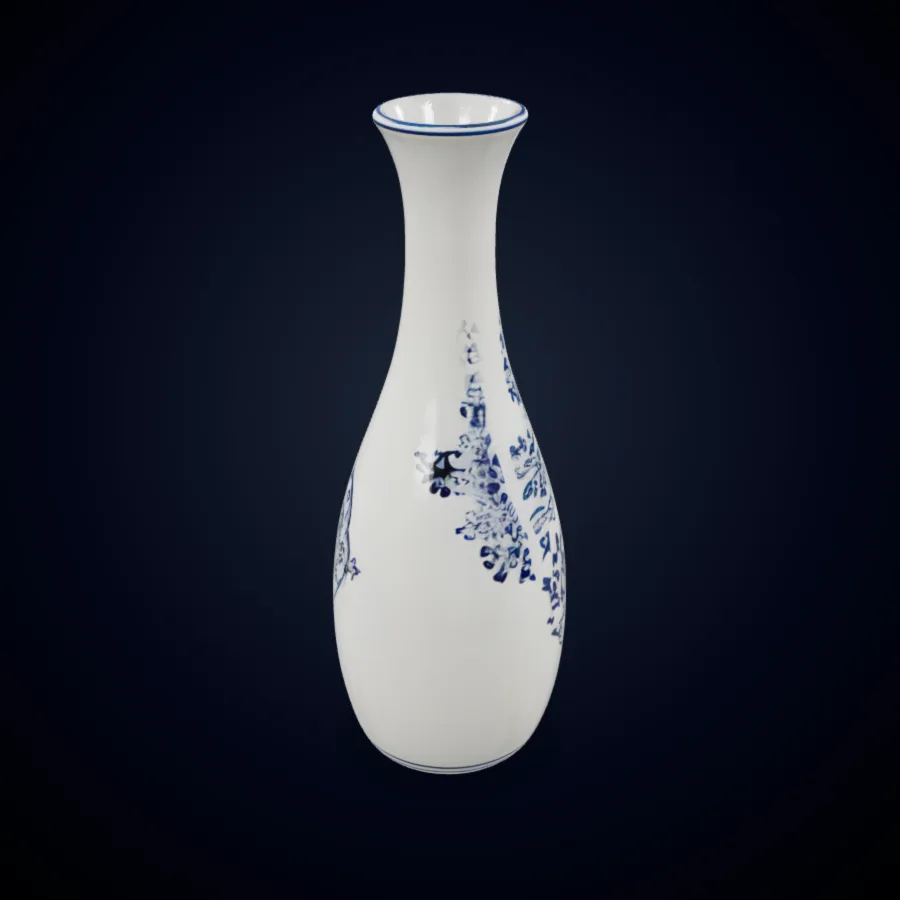
Product-ready hard-surface asset for design review workflows.
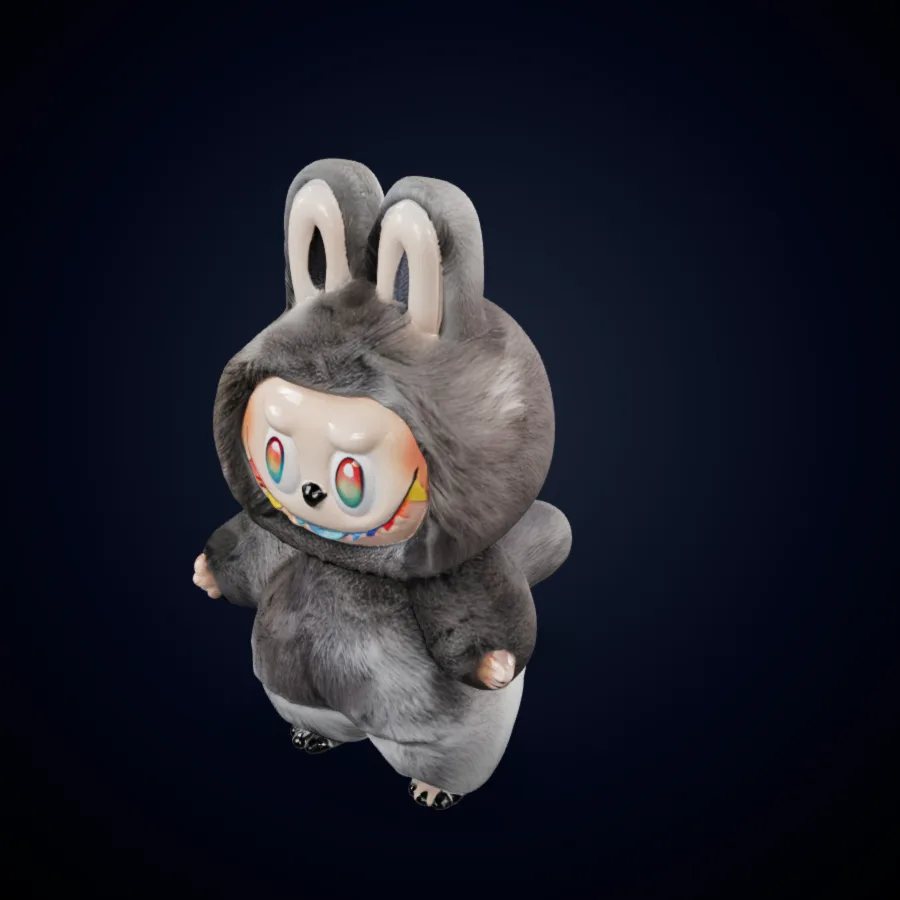
Clean character-style mesh preview for quick creative validation.
Prepare a strong reference, generate with the selected Seed3D model, then inspect the returned ZIP package before export or editing. Seed3D AI works best when the review criteria are clear before upload.
For a Seed3D workflow, crop one object clearly and remove distracting surroundings. Keep the object identity, proportions, and important edges visible. The Seed 3D input does not need to be elaborate, but it should communicate the object more clearly than a crowded scene or partially hidden reference. A concise Seed3D AI reference reduces ambiguity in the review.
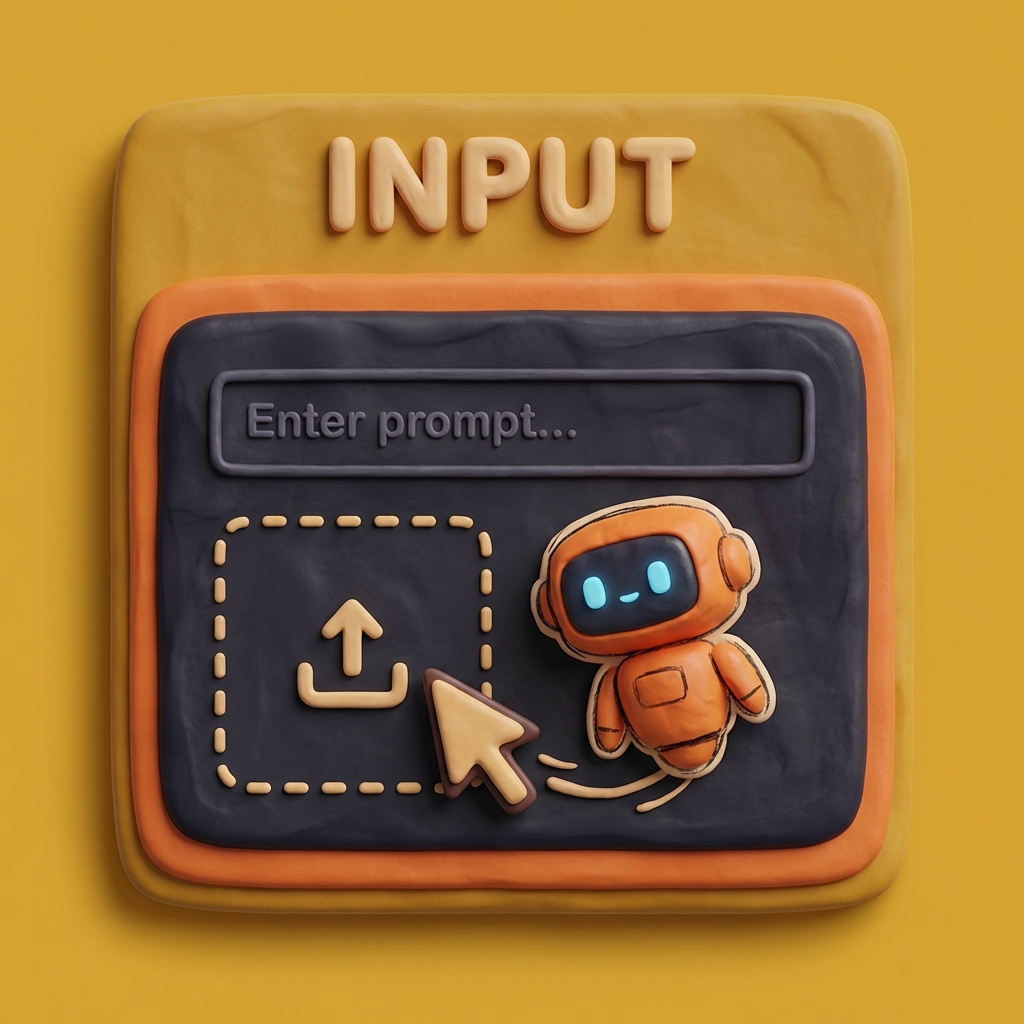
The page opens with Seed3D Image to 3D selected. It uses the existing single-image workflow, so do not rely on a text prompt or multi-view set for this path. Confirm the intended source before generating, then change one variable at a time when comparing a revised reference.
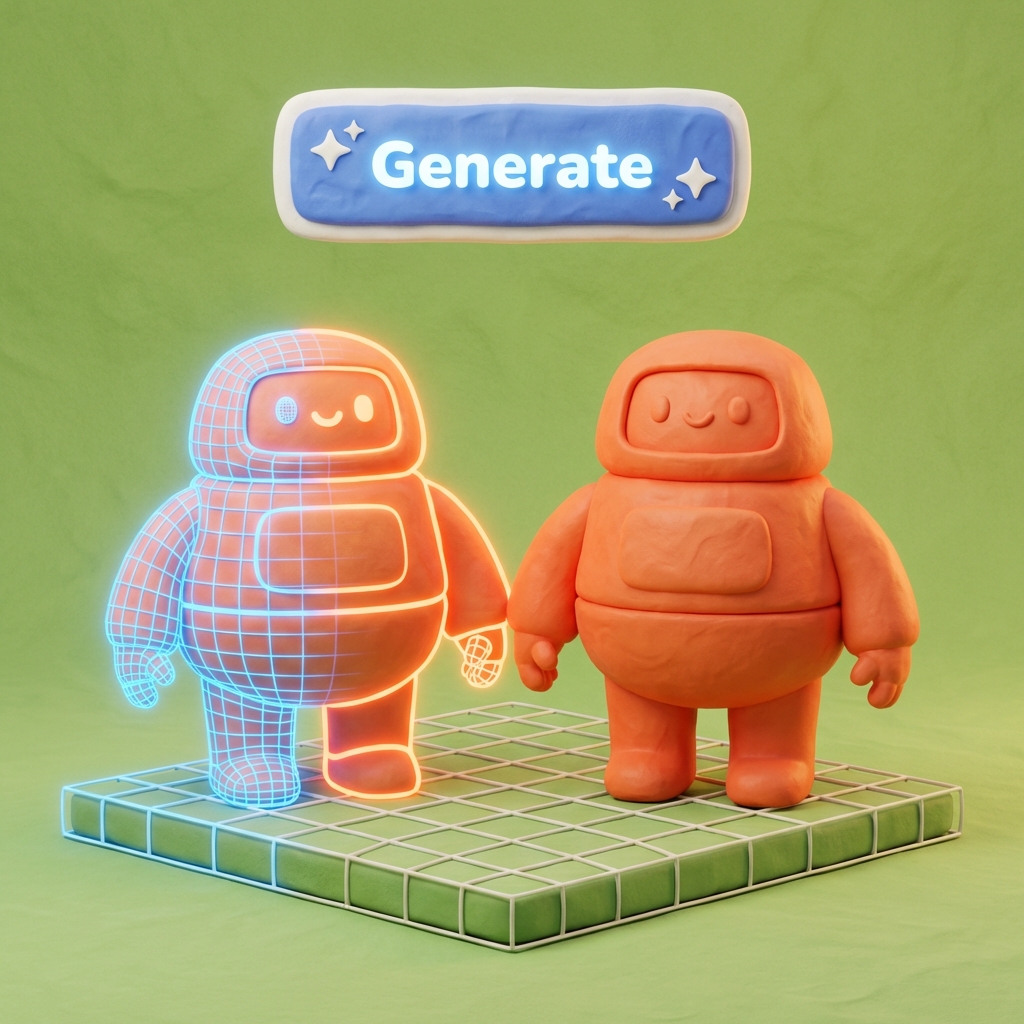
Activate the generator, upload the reference, and create the draft. Rotate the Seed3D result through front, side, rear, top, and low angles. Compare silhouette, thickness, surface continuity, and scale. Download the ZIP package only after the version provides a useful foundation for the next tool and document any cleanup still required.

Seed3D can give teams an inspectable 3D starting point for planning, iteration, communication, and downstream editing. Seed3D AI gives those conversations a visible draft to inspect.

Game teams can turn a prop sketch or reference into a rough asset for scale tests, scene blocking, or art-direction review. Use Seed 3D to make the object tangible early, then assess polygon flow, silhouette, materials, collision needs, and platform budgets. The draft may still require retopology, UV work, baking, and engine-specific optimization before gameplay use.

Product and ecommerce teams can use Seed3D to explore packaging, tabletop objects, accessories, and decorative items as dimensional drafts. Check the model against reference proportions and intended camera angles. The downloaded package can support layout experiments, early AR tests, merchandising discussion, or a clearer brief for a 3D artist before final materials and measurements are prepared.

Industrial designers, educators, and prototype teams can use Seed3D to compare form directions without beginning from an empty scene. A clear image establishes the primary idea. Review the generated volume in a meeting, annotate weak areas, and carry the most promising version into manual modeling or visualization.
Film and VFX teams can test props, creature details, set objects, and background assets before detailed modeling. A Seed3D draft helps answer whether the silhouette and scale deserve deeper work. Artists can then plan topology, UVs, materials, rigging, animation, and shot-specific requirements with a visible starting point rather than a purely verbal brief.
Use a repeatable review before a Seed3D draft becomes part of a production workflow. Seed3D AI review should remain tied to the source and the next production task.
A Seed3D draft should remain recognizable when you rotate it. Compare the outline with the source image, then inspect the back, underside, and narrow side views for unexpected bulk or missing openings.
Check the dimensions that matter to the task: width, height, depth, handles, feet, limbs, and repeated parts. A Seed 3D draft can be useful even when it needs adjustment, provided the team records what must change.
Look for disconnected elements, unwanted intersections, noisy surfaces, or areas where the visual material direction no longer supports the source. Record these findings before moving the Seed3D package into a DCC or engine.
Open the returned ZIP package in the target workflow and confirm the included files are usable for the next step. Check naming, import behavior, scale, and material appearance rather than assuming every output will fit every tool unchanged.
Use the draft to decide whether the next task is retopology, UV work, material adjustment, rigging, collision, or a new reference image. Clear review notes make the Seed3D output easier to hand off and compare.
Keep the source image, generated ZIP, and chosen revision together. This gives the next artist or reviewer enough context to reproduce the Seed3D direction, request a better input, or continue cleanup without guessing.
Answers about the Seed3D Image to 3D workflow available in this generator. The FAQ focuses on practical Seed3D AI input, review, and package handling.
Upload one clear reference, review the Seed3D result, and download the ZIP package when it is ready for the next step.