跳到主要内容

Sloyd AI: Free AI 3D Generator, No Login

Looking for a Sloyd AI 3D generator? Create a model from one image with Formy 3D’s free entry, no login required. Upload your reference, generate a 3D draft, then rotate and download the result.

Free LiteNo login

An AI 3D Generator for Your Next Idea

Bring your Sloyd AI project idea into three dimensions. This image-to-3D generator turns a reference into a draft you can rotate, inspect, and develop into a useful starting asset.

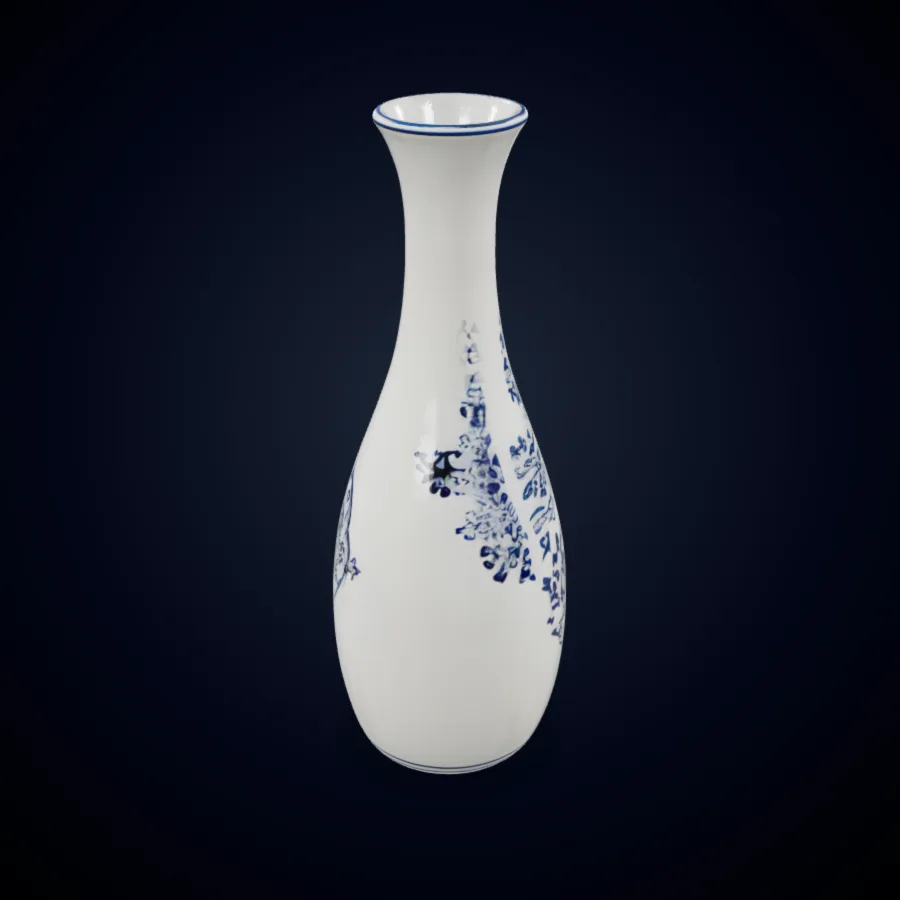
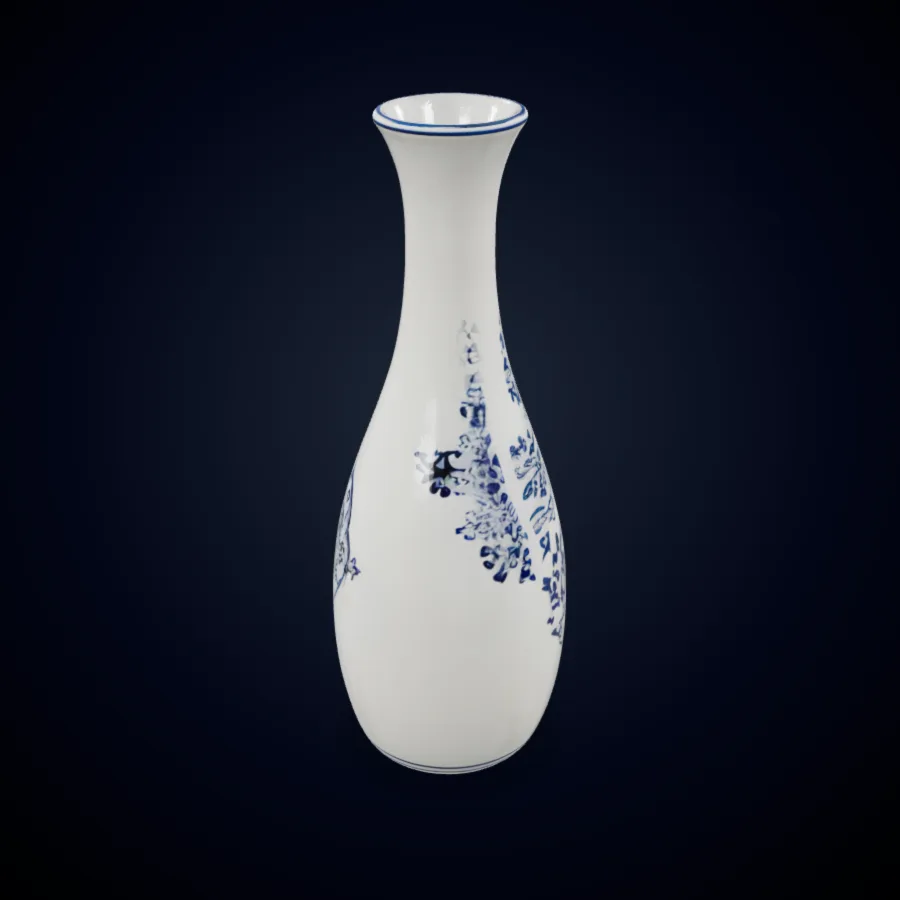
Blue and white ceramic vase showing a clear object silhouette

Generate 3D Models from Photos and Sketches

Start your Sloyd AI project with a product photo, concept sketch, or object render. Upload one clear reference to give the generator a visible silhouette and proportions to turn into a 3D draft.

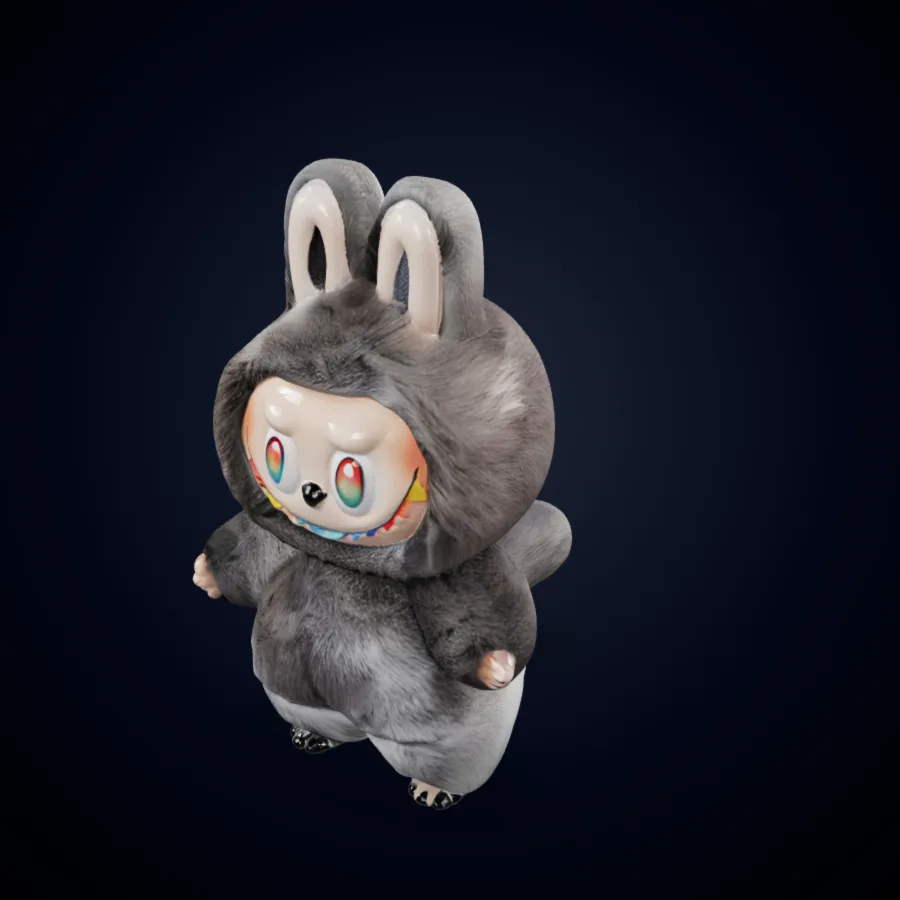
Gray rabbit character model viewed from a three-quarter angle

Start with Words When You Have No Image

Have an idea but no reference? Sloyd AI visitors can also explore the existing Text to 3D mode. Describe a single object, then check the selected model’s access requirements before starting generation.

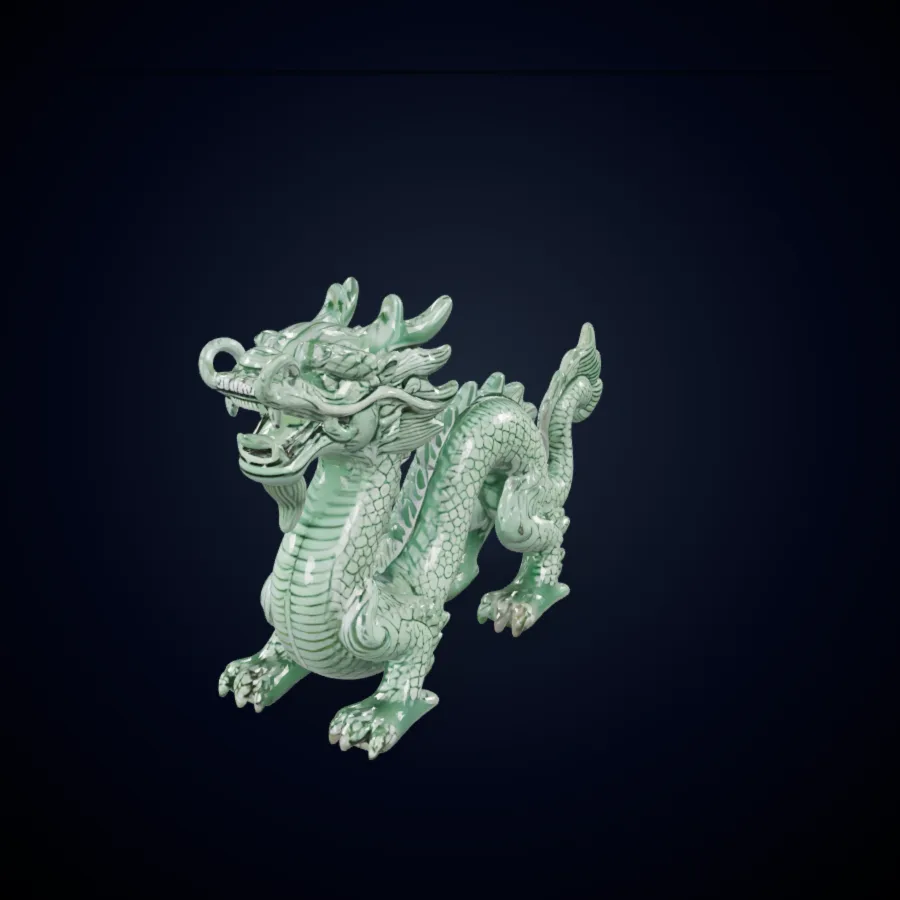
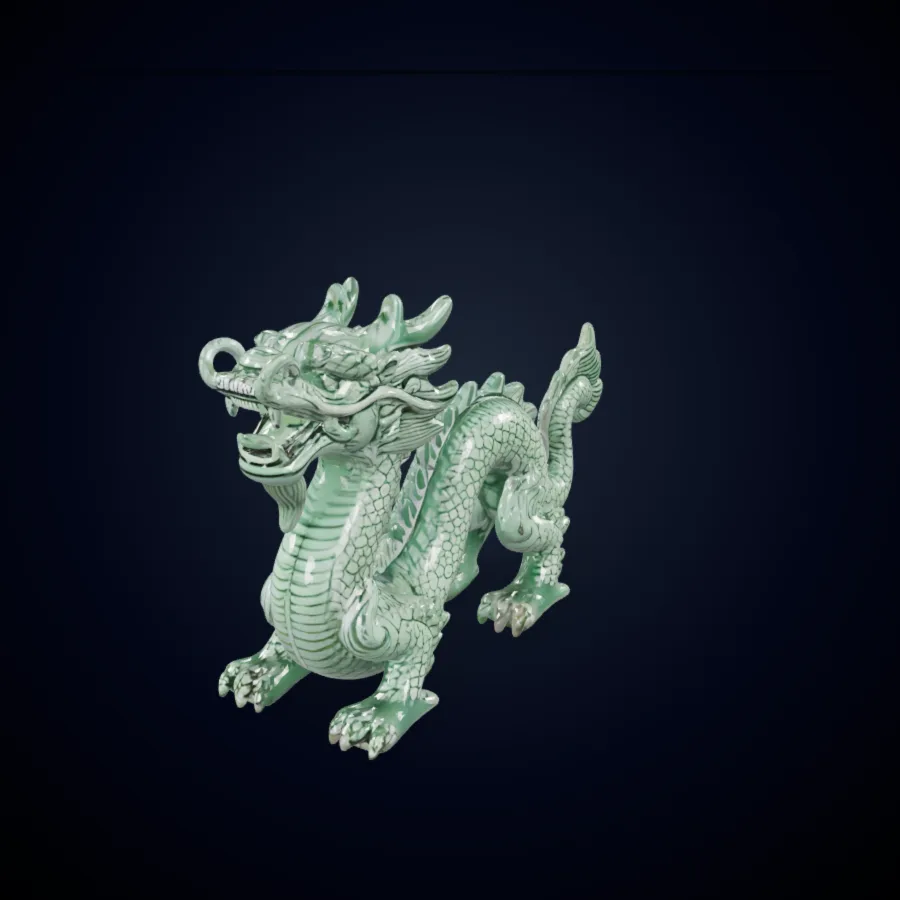
Green dragon collectible model with curled tail and raised details

Preview and Download Your 3D Draft

Bring your Sloyd AI project into the browser preview to inspect shape from different angles. Download the completed result using its available controls, then continue refining the asset in your preferred 3D editor.

Create a 3D Starting Asset Without the Setup

Move your Sloyd AI project from a flat reference to a model preview without setting up a local generation environment.

Start Without an Account

Try the existing free entry before choosing a paid model. Sloyd AI visitors can explore this Formy 3D workflow without assuming every model or setting is free.

Make Decisions Earlier

Generate a rough draft to discuss proportions and composition. Your Sloyd AI project becomes easier to review when everyone can rotate the same shape instead of interpreting separate sketches.

Choose the Input That Fits Your Idea

Use an image when shape is already defined, or a text description when it is not. Sloyd AI visitors can choose between the existing generator modes without changing tools.

How to Use the AI 3D Generator

Build your Sloyd AI project in three stages: upload, generate, and inspect. The generator above uses the same controls and model options as the Formy 3D homepage.

1

Choose One Reference

Upload a supported image showing one object. For your Sloyd AI project, avoid overlapping subjects and extreme crops that leave the overall shape ambiguous.

2

Use the Free Entry

Confirm your selected model and settings, then generate when ready. Sloyd AI visitors create with Formy 3D here; the tool keeps free access and paid model options separate.

3

Inspect Before Export

Rotate the finished draft and examine its edges. Finish your Sloyd AI model review by checking the download options actually offered for that result, rather than assuming a particular format.

AI 3D Generation for Props, Characters, and Collectibles

Start a Sloyd AI project with one asset and a clear purpose: testing a silhouette, exploring proportions, or planning a scene.

Blue and white ceramic vase showing a clear object silhouette
Game Props

Game Props with Readable Silhouettes

Begin your Sloyd AI project with a single prop such as a vase or container. Generate a draft, then inspect whether the outline still reads at gameplay distance before adding materials or placing copies in a scene.

Create a 3D Draft
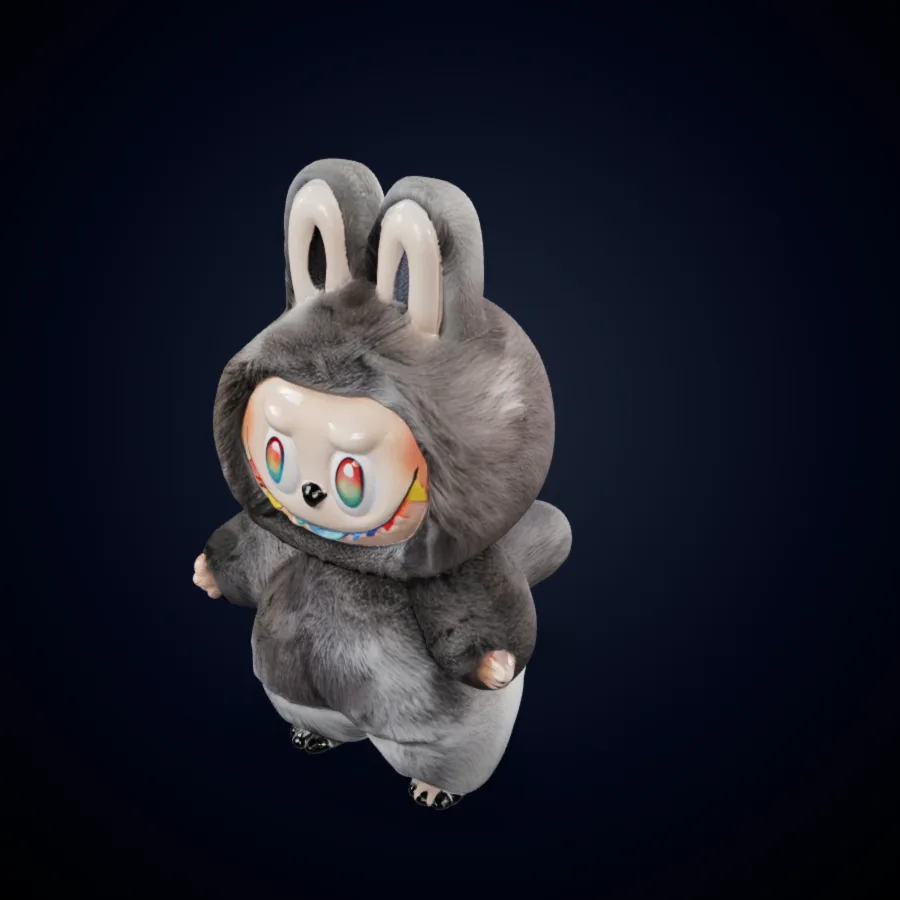
Gray rabbit character model viewed from a three-quarter angle
Character Concepts

Character Concepts for Shape Review

Generate a character draft for your Sloyd AI project and review its overall volume. Check the ears, limbs, and contact points, then decide what needs manual cleanup before any rigging or animation work.

Create a 3D Draft
Green dragon collectible model with curled tail and raised details
Collectibles

Fantasy Collectibles for Presentation

Turn a reference for your Sloyd AI collectible project into a starting draft. Review the raised details, tail, and support points carefully; a pleasing generated preview alone does not prove the model is printable.

Create a 3D Draft

Inspect Your Generated 3D Model

Make your Sloyd AI project review concrete: compare the shape, inspect hidden surfaces, and test the downloaded result.

Silhouette and Scale

Compare the generated model against your reference from the front and side. Your Sloyd AI project review should include relative dimensions, even when the asset will be resized later.

Hidden Surfaces

Look under the base and behind protruding parts. Sloyd AI reference images rarely describe every surface, so unseen geometry may need revision in a modeling application.

Destination Readiness

Open the download in your intended editor. Complete the Sloyd AI review by checking orientation, material behavior, and performance in the actual project, not only the browser preview.

Sloyd AI 3D Generator Questions

Answers about inputs, free access, generated models, and preparing downloads for your Sloyd AI project.

Should Sloyd AI visitors start with text or an image?

Choose an image when you already know the object’s appearance, or text when you are starting from a description. Sloyd AI visitors can find both modes in the generator above. The free no-login starting point described on this page is the image entry; other selections may have different requirements. For your Sloyd AI project, describe or show one subject first instead of asking a single generation to resolve a complete scene.

Which generator powers this Sloyd AI page?

The interactive generator on this page is provided by Formy 3D, using the same controls as its homepage. Sloyd AI visitors can upload a reference, generate a draft, and inspect the result here; this does not connect a Sloyd account or import its projects. If your Sloyd AI project depends on a specific template editor or an existing asset from that service, check those requirements in the original application before moving your work.

Is this Sloyd AI 3D generator entry free?

The Formy 3D tool includes the free no-login entry described here. For Sloyd AI visitors, this provides a way to start generating without assuming every model has the same access conditions. Premium options or additional services may have separate requirements shown by the interface. Before generating the next asset for your Sloyd AI project, review your current selection and any displayed account or credit requirements; free access does not extend to every option.

Do Sloyd AI visitors need to sign up here?

You can start with the existing free entry without creating an account. For a Sloyd AI visitor, this makes it possible to evaluate the basic workflow first. Other parts of Formy 3D may ask you to sign in, and this page does not remove those requirements. If you continue your Sloyd AI exploration with another model, read its access conditions before generating rather than expecting every option to remain anonymous.

Which images can Sloyd AI visitors upload here?

The image input accepts PNG, JPEG, and WebP files. Sloyd AI visitors should choose a clear photo, sketch, or render with one main subject and limited background clutter. Keep important details inside the frame and use a view that explains the object’s volume. For a Sloyd AI project with transparent or reflective parts, try a simpler reference first; surface reflections may obscure the shape you want the generator to reconstruct.

Can I generate a game prop for my Sloyd AI project?

A modest prop is a practical first asset to generate. For your Sloyd AI project, choose something with a recognizable outline and inspect the result at the distance used in your game. The generated draft still needs review for geometry, materials, and runtime cost. Treat your Sloyd AI model as an early asset, not proof that the download already meets your engine’s production requirements or the performance budget of a finished game.

Does this Sloyd AI page include parametric templates?

Sloyd AI offers a separate approach based on editable parametric templates, alongside its generative tools. That template editor is not part of this Formy 3D generator. Here, use the available image or text mode to create a draft and refine the downloaded asset in your editor. If your Sloyd AI project specifically needs slider-driven template dimensions, check that requirement before starting; generated geometry and a parametric template are different kinds of assets.

What should I inspect in a Sloyd AI character draft?

Start with the overall proportions, then examine thin features and the spaces between limbs. A Sloyd AI character review should include the back and underside, where the reference may provide little information. A static preview does not establish animation readiness. Before extending your Sloyd AI project into rigging, inspect topology and deformation needs in a suitable editor, and budget time for corrections rather than relying on the initial appearance alone.

Are generated Sloyd AI project models ready for printing?

Not automatically. Your Sloyd AI project may begin with a promising generated shape, but a browser preview does not confirm watertight geometry, printable wall thickness, or suitable supports. Check the downloaded asset in your modeling and slicing software. For a Sloyd AI printing project, review scale and fragile details before committing material to a print; decorative projections that look appealing on screen can require redesign for a reliable physical object.

How do I download a model for my Sloyd AI project?

Use the download choices shown for the completed result, then open the file in your intended application. Your Sloyd AI project can continue downstream once that application reads the asset correctly. Inspect orientation, surface appearance, and missing resources after import. Do not assume that a format mentioned in a Sloyd AI tutorial is offered by the currently selected model or every result here; use the options displayed alongside your own completed generation.

Do Sloyd AI visitors need to install modeling software?

No local modeling software is needed to use the browser generator and inspect its preview. Sloyd AI visitors can prepare an input and start with the free image entry on this page. An external editor becomes useful when you need precise dimensions, topology cleanup, or changes to hidden surfaces. For a Sloyd AI project headed to a game or printer, test the download in the destination application before treating it as a finished asset.

What if generation for my Sloyd AI project fails?

Read the status or error shown by the tool before changing your input. Generation for a Sloyd AI project may be interrupted by availability limits or a processing failure, and repeatedly submitting the same task may not help. Preserve your reference, check the active model, and retry only when appropriate. If you switch services for your Sloyd AI project, review their requirements separately instead of assuming identical availability, generation speed, or output quality.