





Image to 3D AI Generator

Turn a clear image into a 3D model draft with Formy 3D. Use Image to 3D for fast preview, export, and cleanup.

Generation Preview

Generated 3D model preview

Upload Image

Upload Image

PNG, JPG, WebP

GuideRandom

Texture

Mesh Density

FastStandardProUltra

Preparing interactive generator · Login for more options

AS SEEN ON

Product Hunt
Reddit
Medium
YouTube

What Is Image to 3D in Formy 3D?

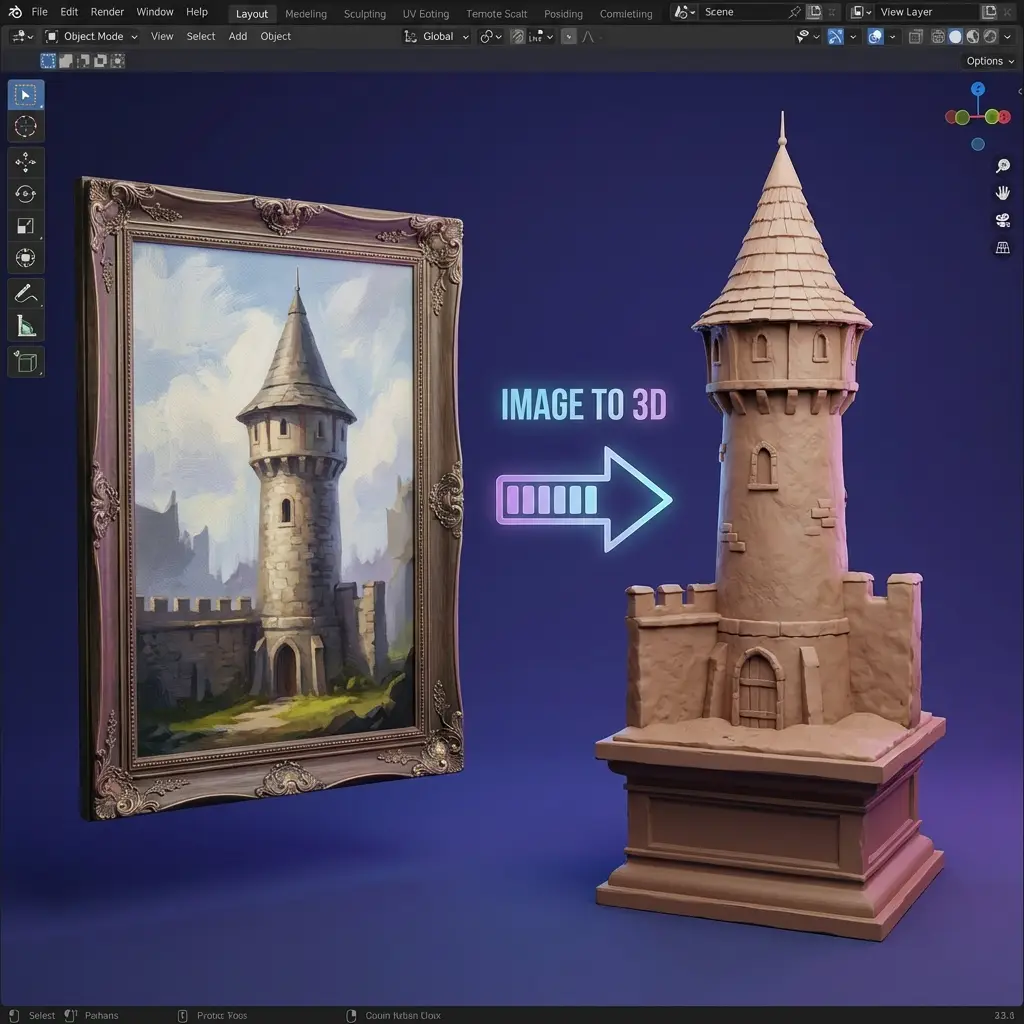
Image to 3D is a practical way to turn a photo, sketch, product shot, or concept image into a 3D model draft that can be reviewed from multiple angles. In Formy 3D, the goal is simple: upload a clear reference, generate a first asset, inspect the result, and decide whether it is ready for cleanup or another attempt. This Image to 3D AI page keeps the first step approachable while explaining how creators can prepare better inputs and judge outputs responsibly.

A Direct Image to 3D Starting Point

A Direct Image to 3D Starting Point

Image to 3D is useful when you already have a visual reference and need a dimensional direction before manual modeling begins. A product designer may start with a packaging photo, a game artist may start with a prop sketch, and a creator may start with a toy, shoe, lamp, or character accessory. Formy 3D treats the image as a visual brief. The generated model should be considered a draft that can be rotated, compared, exported, and improved instead of a guaranteed final asset.

How Image to 3D AI Reads a Reference

How Image to 3D AI Reads a Reference

Image to 3D AI works best when the subject is easy to understand. A clean silhouette gives the system shape information, visible surfaces provide material clues, and centered composition reduces confusion from the background. Hidden backs, undersides, and internal parts still require human judgment because one flat picture cannot reveal every side of an object. Use Image to 3D AI as a fast interpretation layer, then review the result like a creator who knows the source image and the final use case.

From Flat Image to Editable 3D Draft

From Flat Image to Editable 3D Draft

The most valuable Image to 3D workflow is not only about producing a mesh. It is about reducing the time between a flat idea and a shared object that a team can inspect. Once Formy 3D creates the draft, compare the front view with the input, rotate the model, check proportions, and decide whether the draft is worth editing in Blender, Unity, Unreal, or another 3D tool. Image to 3D gives visual momentum, but editing keeps quality under your control.

Better Inputs for Better Results

Better Inputs for Better Results

A strong Image to 3D input has one main subject, readable lighting, limited background clutter, and enough resolution to show important edges. Product photos, isolated object shots, clean sketches, and high-contrast concepts usually work better than busy lifestyle scenes. If the picture lacks details, add a short prompt that explains material, scale, style, and hidden structure. Image to 3D AI can move quickly, but the input still shapes the quality of every draft.

Built for Review Before Production

Built for Review Before Production

Formy 3D positions Image to 3D as a creator workflow for fast review, not as a promise that every output is production-ready. Before using a generated asset, inspect silhouette, scale, surface continuity, texture behavior, topology, and export format. A good Image to 3D draft can save time for ideation, product mockups, education, and game blocking, while final delivery still benefits from human cleanup, optimization, and license review.

How to Use

How to Use Image to 3D

A reliable Image to 3D process moves from a clean reference to generation, inspection, and export. These steps help new users keep Image to 3D AI practical and easy to judge.

1

Step 1: Upload a Clear Image

Start Image to 3D with one object that is easy to separate from the background. Crop around the subject, avoid heavy blur, and choose lighting that reveals the main form. If the image shows only the front, add a note about the back, material, or style so Image to 3D AI has fewer ambiguous choices.

Step 1: Upload a Clear Image
2

Step 2: Generate an Image to 3D Draft

Run the generator and compare the first draft with the source image. Look for the big shape before judging small details. If the model misses the subject, simplify the picture or use a more direct description. Image to 3D can be fast, but the best results often come from small input improvements.

Step 2: Generate an Image to 3D Draft
3

Step 3: Preview and Export the Model

Rotate the result, inspect the side and back, and check whether the model is useful for the next tool. Export the Image to 3D draft only after confirming scale, texture direction, and overall readability. For serious projects, continue cleanup in 3D software before using the asset in a scene, store, print, or pitch.

Step 3: Preview and Export the Model

Where Image to 3D Fits in Real Workflows

Image to 3D helps teams move from a reference image to a visible 3D draft before they commit to deeper modeling. These examples show where Image to 3D AI can save review time.

Game Props and Indie Assets
Games

Game Props and Indie Assets

Game teams can use Image to 3D for quick prop blocking, collectible ideas, environment objects, and early character accessories. A draft model gives designers something to rotate and discuss before optimization begins. Image to 3D AI supports fast art direction, while final game assets still need retopology, material cleanup, scale checks, and engine testing.

Explore More →


Product Visualization Drafts
Product

Product Visualization Drafts

Product designers and marketers can use Image to 3D to turn a product photo into a dimensional draft for internal review. The model can help teams discuss angle, shape, display needs, and campaign composition earlier than a full manual modeling pass. Use Image to 3D AI when speed matters and the reference is clean enough to guide the object.

Explore More →
Ecommerce and Campaign Mockups
Commerce

Ecommerce and Campaign Mockups

Ecommerce teams often need fast visual material before investing in a full studio pipeline. Image to 3D can create a browser-reviewable draft from a product shot, package, or accessory reference. The output may help with merchandising discussions, scene planning, and creative testing before the final asset is rebuilt or polished.

Explore More →
Education and 3D Experiments
Learning

Education and 3D Experiments

Teachers, students, and hobbyists can use Image to 3D to understand how a flat reference becomes a model that can be inspected in space. The workflow is useful for explaining silhouette, proportion, material clues, and why hidden surfaces matter. Image to 3D AI makes the lesson immediate because users can compare the input and output in one session.

Explore More →

How to Get Better Image to 3D Results

A useful Image to 3D result should match the source, survive rotation, and remain practical for the next tool. Use these checks before treating any draft as production material.

Use One Clear Subject

Image to 3D works best when the input contains one main object. Multiple subjects, reflective clutter, cropped edges, and busy backgrounds can confuse the draft. Keep the reference focused so the generated model has a clear target.

Check Silhouette First

Before judging tiny texture details, compare the big outline and volume. A strong Image to 3D draft should preserve the main silhouette, proportions, and readable shape of the original image.

Describe Hidden Details

A single picture may not show the back, bottom, or inside of an object. Add short guidance for hidden structure, material, scale, and style. Image to 3D AI performs better when the missing information is explained.

Review Texture and Surface Quality

Inspect material continuity, seams, rough areas, and lighting response before using the model in a product preview or realtime scene. Image to 3D can capture useful surface direction, but every output still needs review.

Keep the Model Editable

Treat each Image to 3D output as a starting point. Clean topology, correct scale, adjust materials, and test the model in the tools that match your pipeline instead of locking the first draft too early.

Match Output to the Final Tool

Choose the next step based on the project. GLB is convenient for web previews, OBJ can support cleanup workflows, and other formats may fit printing or game production. Image to 3D AI is strongest when export choices match the final destination.

Image to 3D FAQ

Answers about Image to 3D, Image to 3D AI, reference quality, editing, exports, and how to judge generated 3D model drafts in Formy 3D.

What does Image to 3D mean?

Image to 3D means using a flat image as the starting point for a 3D model draft. The image may be a product photo, object snapshot, sketch, or concept frame. Formy 3D helps turn that reference into a model you can preview, compare, and refine.

How does Image to 3D AI work?

Image to 3D AI uses visual clues from the reference, including outline, visible surfaces, proportions, color, and material hints. Because one image cannot reveal every side, creators should review the draft carefully and add guidance when important hidden details matter.

What images work best for Image to 3D?

The best Image to 3D inputs show one clear subject with readable edges, good lighting, and a simple background. Product photos, clean object references, and high-contrast sketches usually work better than crowded scenes or heavily cropped images.

Can I turn a product photo into a 3D model?

Yes. A product photo is one of the most common Image to 3D inputs. The result can help with early visualization, ecommerce planning, packaging review, or creative mockups. For commercial delivery, inspect the mesh, textures, proportions, and usage rights before publishing.

Can I use sketches or drawings?

Yes, sketches and drawings can work when the object shape is clear. Image to 3D AI may need extra prompt details for materials, depth, hidden sides, and style because drawings often leave parts open to interpretation.

Is the generated result production-ready?

Not always. Image to 3D should be treated as a fast draft workflow. Some outputs may be useful immediately for review or mockups, but production work often needs cleanup, retopology, UV edits, material fixes, scale checks, and format validation.

Can I edit the model in Blender or Unity?

Generated assets can be used as drafts in downstream 3D tools when the export format and quality fit your project. Use Image to 3D to create the starting point, then refine geometry, materials, scale, and scene integration in Blender, Unity, Unreal, or a similar workflow.

What formats should I use after generation?

The right format depends on the next tool. GLB is practical for web preview and compact sharing, OBJ is useful for many cleanup workflows, and print-focused pipelines may require other formats. Check what Formy 3D exports for your selected workflow before planning final delivery.

Do I need 3D modeling experience?

You do not need deep modeling experience to try Image to 3D. Upload a clear image, generate a draft, and inspect the result in the browser. Modeling experience still helps when judging topology, scale, texture quality, and whether the asset is ready for a real project.

How can I improve Image to 3D AI results?

Use a focused image, crop around the object, avoid noisy backgrounds, and describe hidden details in a short prompt. After generation, compare the model with the source image from multiple angles. Image to 3D AI improves when the input is specific and the review criteria are clear.

Try Image to 3D in Formy 3D

Upload a reference image, generate an Image to 3D draft, and review the model before editing it in your favorite 3D tools.