


3D to 3D AI Generator

Upload a 3D model and use 3D to 3D to create a guided draft with Formy 3D. Refine shape, style, and direction faster.

Generation Preview

Generated 3D model preview

Upload 3D Model

Upload 3D Model

GLB, OBJ, FBX

GuideRandom

Texture

Mesh Density

FastStandardProUltra

Preparing interactive generator · Login for more options

AS SEEN ON

Product Hunt
Reddit
Medium
YouTube

What Is 3D to 3D in Formy 3D?

3D to 3D is a model-guided workflow for creators who already have a source asset and want a faster way to explore a new direction. Instead of starting from a blank prompt or a flat reference image, Formy 3D lets you begin with an existing model, preview a guided draft, and decide whether the result is useful for editing, review, or export. This 3D to 3D AI page focuses on practical iteration: keep the source asset in mind, guide the change clearly, inspect the output from every angle, and treat each result as a draft that can move into your next 3D tool.

A Model-Guided 3D to 3D Starting Point

A Model-Guided 3D to 3D Starting Point

3D to 3D is useful when a creator already has a rough mesh, prototype, game prop, product concept, or previous generated asset. The source model gives the workflow shape information that a text prompt alone may not communicate. Formy 3D uses that starting point as visual and structural guidance, then creates a new 3D to 3D draft that can be compared with the original. The goal is not to replace careful modeling, but to shorten the distance between an existing asset and a reviewable new direction.

Use 3D to 3D AI for Directional Changes

Use 3D to 3D AI for Directional Changes

3D to 3D AI works best when the requested change is specific. A creator might ask for a cleaner sci-fi version of a rough prop, a softer toy-like version of a creature, or a simplified model for a web preview. The source model supplies the base idea while the instruction guides the new style, silhouette, or level of detail. Because 3D to 3D AI still creates drafts, every result should be checked for scale, shape, surface quality, and downstream usability before it becomes part of a production workflow.

Preview Before Manual Cleanup

Preview Before Manual Cleanup

The strongest 3D to 3D workflow is review-first. After generating a draft, rotate it, compare the front, side, and back views, and look for changes that actually improve the asset. If the new shape is useful, the model can move into cleanup, retopology, material editing, or scene testing. If the draft misses the target, use 3D to 3D again with a narrower instruction. Formy 3D helps teams explore options before spending detailed manual time on the wrong direction.

Keep Edits Practical for Export

Keep Edits Practical for Export

3D to 3D should support the tools that come after generation. A good draft needs readable volume, usable proportions, and a clear relationship to the source model. Before exporting, check whether the model still matches the intended use case, whether the surface detail is helpful, and whether the asset will make sense in a game engine, web viewer, product mockup, or modeling package. 3D to 3D AI gives speed, but the creator still decides when the result is ready to continue.

Iterate Without Starting Over

Iterate Without Starting Over

3D to 3D is valuable because it lets creators keep momentum. When an object is close but not finished, you can use the existing asset as a base instead of rewriting a full prompt or rebuilding the object from scratch. Try one change at a time, compare each version, and keep the draft that best supports the project. Formy 3D makes 3D to 3D iteration approachable for concept review, asset exploration, and early creative direction.

How to Use

How to Use 3D to 3D

A reliable 3D to 3D process moves from source model to guided generation, inspection, and export. These steps help creators keep 3D to 3D AI practical and easy to evaluate.

1

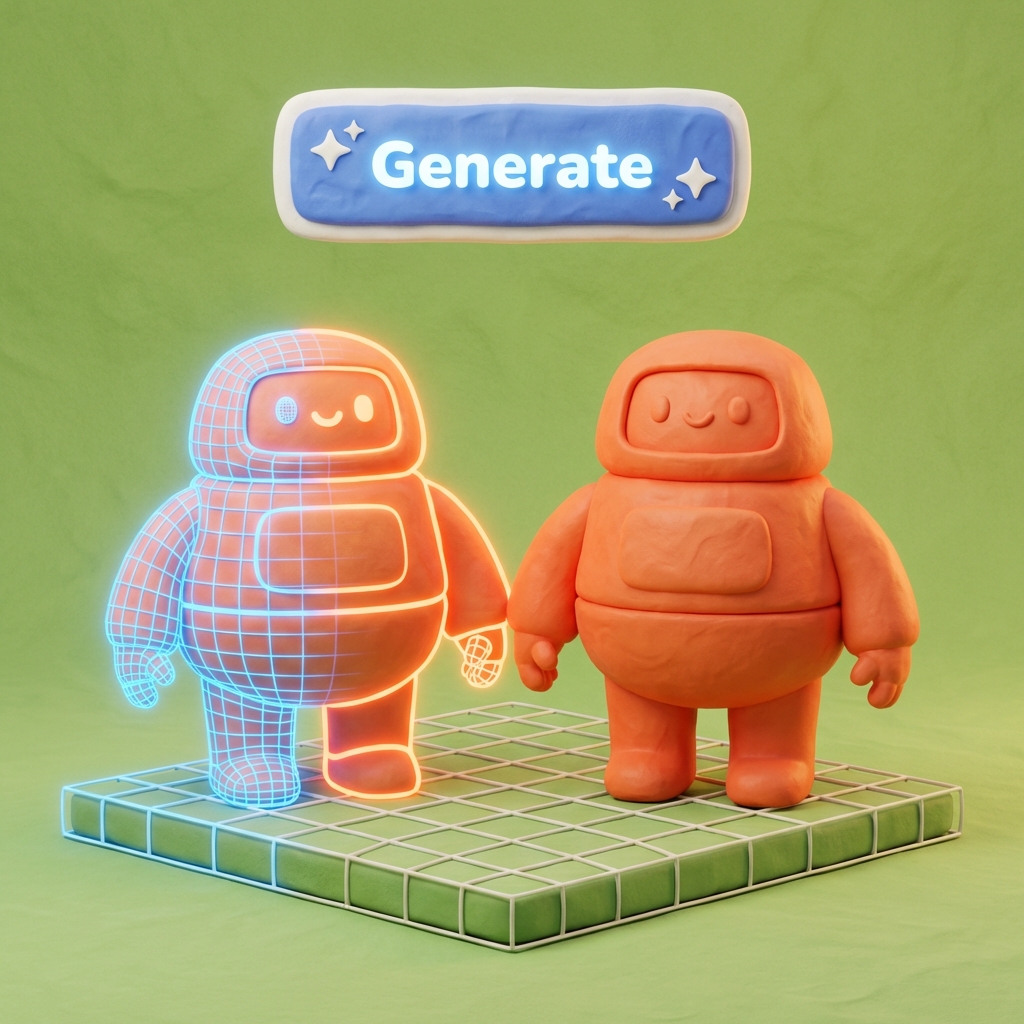
Step 1: Upload a Source 3D Model

Start 3D to 3D with a model that clearly represents the object you want to improve or reinterpret. A clean silhouette, understandable proportions, and a focused subject make the next draft easier to judge. If the source model is rough, decide what should stay before running 3D to 3D AI, such as the main shape, object category, or design language.

Step 1: Upload a Source 3D Model
2

Step 2: Choose the 3D to 3D Mode

Use the 3D to 3D tab in the generator, choose the model-guided workflow, and add a focused instruction when needed. Ask for one clear change, such as cleaner surfaces, a stylized version, a new proportion, or a simplified draft. 3D to 3D works best when the input model and direction do not compete with each other.

Step 2: Choose the 3D to 3D Mode
3

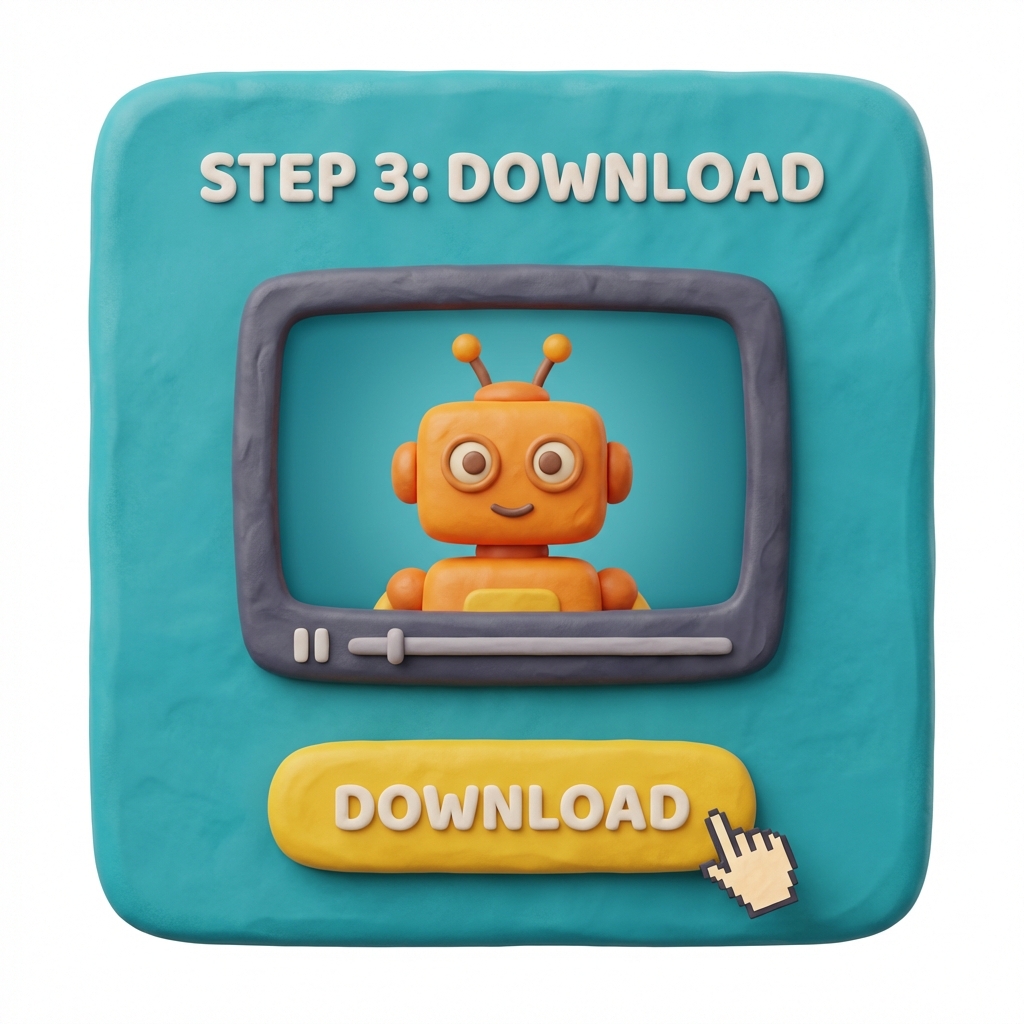
Step 3: Review, Refine, and Export

Rotate the 3D to 3D result, compare it with the source model, and inspect the areas that matter most for your project. If the draft is close, export it for cleanup or presentation. If the draft changes the wrong details, adjust the instruction and run 3D to 3D AI again with a more precise request before spending time on manual edits.

Step 3: Review, Refine, and Export

Where 3D to 3D Fits in Real Workflows

3D to 3D helps teams transform an existing asset into a reviewable new draft. These examples show where 3D to 3D AI can reduce repeated modeling work.

Game Prop Variations
Games

Game Prop Variations

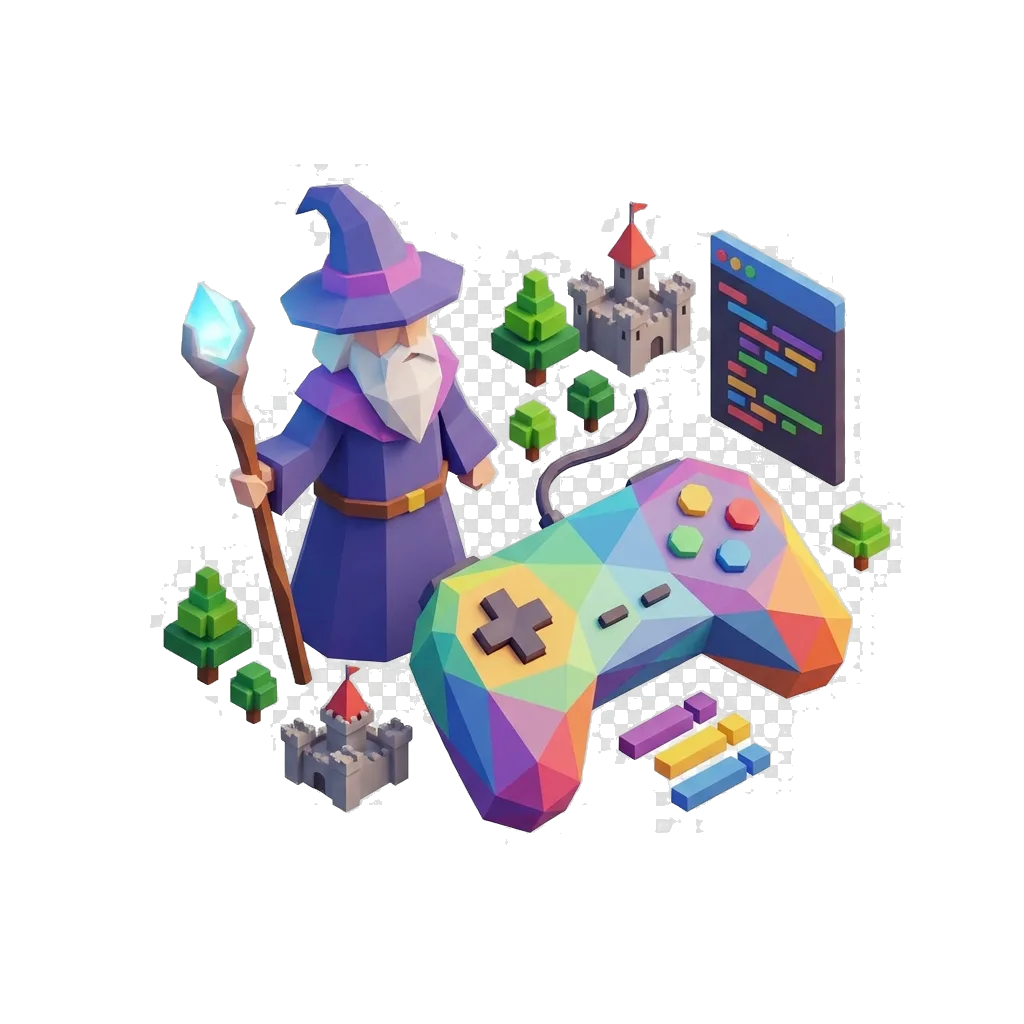
Game teams can use 3D to 3D to explore variations of weapons, crates, collectibles, environment objects, and character accessories. A source model gives the asset a starting structure, while 3D to 3D AI helps test another art direction before optimization. Final game assets still need topology cleanup, scale checks, materials, collision planning, and engine testing.

Explore More →


Product Concept Iteration
Product

Product Concept Iteration

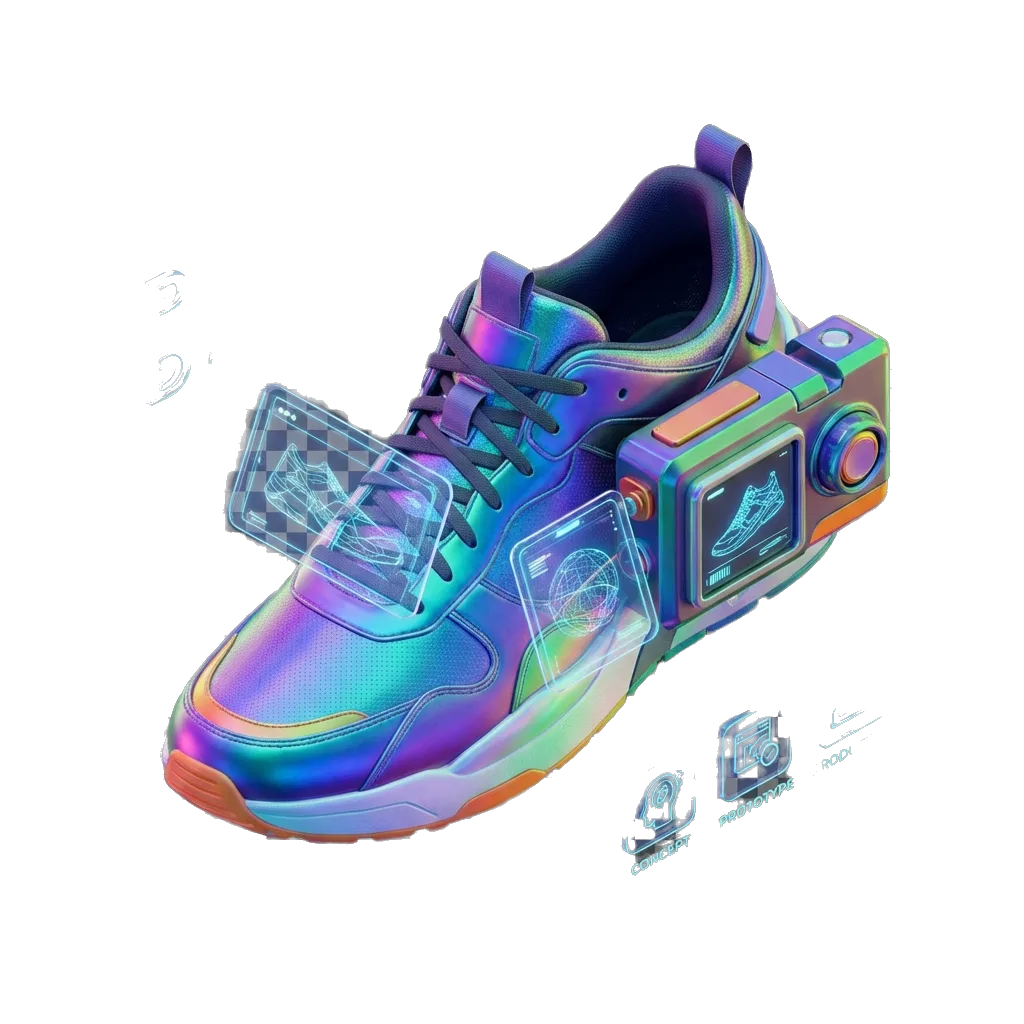
Product teams can use 3D to 3D when a prototype already exists but needs another design direction. The workflow can help compare proportions, surfaces, and presentation-ready shapes before a full modeling pass. Use 3D to 3D AI for early reviews, campaign mockups, and internal discussions where speed matters more than final manufacturing precision.

Explore More →
Character and Creature Refinement
Characters

Character and Creature Refinement

Artists can use 3D to 3D to reinterpret a rough character accessory, creature bust, toy-like shape, or stylized figure. The source asset keeps the idea grounded while the new draft explores a different finish. 3D to 3D is helpful for creative direction, but anatomy, rigging, facial detail, and production topology should still be handled carefully in dedicated tools.

Explore More →
Prototype Cleanup and Web Drafts
Drafts

Prototype Cleanup and Web Drafts

Designers, educators, and web teams can use 3D to 3D to turn a rough asset into a cleaner draft for explanation, review, or lightweight presentation. The output can support AR, VR, classroom examples, web previews, and pitch materials. 3D to 3D AI is most effective when the source model is understandable and the next use case is clear.

Explore More →

Get Better 3D to 3D Results

A useful 3D to 3D result should preserve the important idea from the source model while improving the direction you asked for. Use these checks before treating any 3D to 3D AI draft as production material.

Start with a Clean Source Model

3D to 3D works best when the input model has one clear subject and a readable outline. Broken shapes, unrelated parts, extreme clutter, and confusing proportions can make the draft harder to evaluate. Clean the source or choose a simpler asset before using 3D to 3D for an important project.

Use Specific Directional Prompts

Describe the exact change you want from 3D to 3D AI. Ask for a simpler surface, a stylized toy version, a sharper mechanical form, or a cleaner presentation draft. Avoid asking for many unrelated changes in one run because the final 3D to 3D result may be difficult to judge.

Compare Against the Original

A 3D to 3D result should not be judged alone. Compare it with the source model and ask whether the new draft improves the shape, style, or usefulness. If the output loses the best part of the original asset, refine the instruction and run 3D to 3D again.

Check Scale, Shape, and Surface Detail

Before exporting, inspect the silhouette, side view, underside, and surface continuity. 3D to 3D AI can create strong directional drafts, but creators should still check scale, material readability, mesh quality, and whether the result fits the next tool.

Export for the Next Tool in Your Pipeline

Choose the export path based on the project. A web preview, game scene, product mockup, print concept, and animation test all have different requirements. 3D to 3D can help create the next draft quickly, while final polish depends on the destination workflow.

Keep Iterations Organized

Save source models and generated drafts separately. Name each 3D to 3D version by its intended change so teams can compare options without confusion. Organized iteration makes 3D to 3D AI more useful for reviews because each draft has a clear reason to exist.

3D to 3D FAQ

Answers about 3D to 3D, 3D to 3D AI, source model quality, editing, exports, and how to judge generated model drafts in Formy 3D.

What does 3D to 3D mean?

3D to 3D means using an existing 3D model as the starting point for a new 3D draft. Instead of beginning with only a prompt or a flat image, Formy 3D lets you start from a model, generate a guided variation, preview the result, and decide whether it is ready for cleanup or another 3D to 3D pass.

How does 3D to 3D AI work?

3D to 3D AI uses the source model as structural guidance and combines it with the selected tool or instruction. The source asset can guide shape and proportion, while the request can guide style, detail, or cleanup direction. Because 3D to 3D AI still creates drafts, creators should inspect every output before exporting or publishing it.

Is 3D to 3D the same as file conversion?

No. 3D to 3D is not the same as converting GLB to OBJ or changing one file format into another. File conversion keeps the asset mostly the same while changing format. 3D to 3D creates a new model draft from an existing source model, so the result may change shape, style, or surface direction.

Can I upload an existing 3D model?

Yes. The 3D to 3D workflow is designed around an existing model or selected asset. A cleaner source model usually gives 3D to 3D AI a better starting point. If the source is messy, simplify the input or decide which parts should matter before generating a new draft.

What files work best for 3D to 3D?

The best 3D to 3D inputs are understandable models with one main subject and clear proportions. Supported file behavior can depend on the selected tool, but the quality principle is consistent: use a model that is easy to preview, easy to compare, and focused enough for 3D to 3D AI to reinterpret.

Can 3D to 3D change style and shape?

Yes. 3D to 3D can help explore a different style, cleaner surface direction, simplified form, or adjusted shape while keeping the source asset as a guide. Keep the requested change focused. A single clear direction usually gives a more useful 3D to 3D result than a long list of unrelated edits.

Is 3D to 3D useful for game assets?

Yes. Game teams can use 3D to 3D to create early prop variations, art direction drafts, collectible ideas, and environment object options. The result can speed up review, but production game assets still need optimization, UV checks, materials, scale testing, and engine validation after the 3D to 3D AI step.

Can I use 3D to 3D for product concepts?

Yes. Product designers can use 3D to 3D to explore a new shape direction from an existing concept model. The workflow is useful for internal reviews and fast visual comparison. For commercial, manufacturing, or ecommerce delivery, inspect the draft carefully and polish the model in the appropriate production tools.

Do I still need manual cleanup?

Often, yes. 3D to 3D AI is best treated as a fast drafting workflow. Some results may be useful for previews, but production work often needs retopology, material edits, UV cleanup, scale correction, file validation, and scene testing before the asset is considered final.

How is 3D to 3D different from Text to 3D?

Text to 3D starts from a written prompt. 3D to 3D starts from an existing model. If you have only an idea, Text to 3D may be the first step. If you already have a model and want a guided variation or refinement, 3D to 3D is usually the more relevant workflow.

How is 3D to 3D different from Image to 3D?

Image to 3D starts from a flat picture, sketch, or product photo. 3D to 3D starts from an actual 3D model, which gives the workflow more direct spatial guidance. Use Image to 3D when the reference is visual. Use 3D to 3D when you already have a model that should guide the next draft.

When should I use 3D to 3D AI?

Use 3D to 3D AI when an existing model is close enough to guide the next version but not final enough for your project. It is helpful for variations, style exploration, cleaner drafts, prototype review, and early creative direction. Use 3D to 3D when speed and comparison matter, then finish important assets with careful editing.

Try 3D to 3D in Formy 3D

Upload a source model, generate a 3D to 3D draft, and review the result before editing it in your favorite 3D tools.